

A presentation becomes interactive when the room does something with what is on screen: answers a poll, sends a question, picks a word, takes a short quiz. This guide walks through each of those moments and how to plan them. Every one of them runs in Diaposi Session, on the PowerPoint, PDF or Word file you already have.
What makes a presentation interactive?
A presentation is interactive when the room’s answers change what happens next. Animations, videos and clickable menus do not count: they change what the audience sees, not what it does. The test is simple. If you could give the same talk to an empty room, it is not interactive yet.
Which interactions should you plan?
- A poll when you want a count: who has done this before, which option the room prefers. See how to use live polls in a presentation.
- A word cloud for a first read of the room in one word: how to use a live word cloud.
- Anonymous questions so the people who never raise a hand can ask: anonymous Q&A during a presentation.
- A short quiz to see what landed before you move on: how to check understanding during a lecture or training.
Where do the interactions go?
Plan them before you open the file. Mark three or four slides where the room should answer, and build the talk around those moments: one to open, one or two in the middle where people usually get lost, one to close. You do not need a new deck for this: you can make a PowerPoint interactive from the file you already have.
Long sessions and big rooms need more of these moments, not fewer. See how to make a lecture interactive, how to keep a large lecture engaged and how to make training sessions interactive.
What do you do afterwards?
Look at what the room gave you: which poll split it, which questions were voted up, where people said they were lost. That is what you change before the next session. How to measure engagement in a live session covers what to look for.
Which interaction fits which moment
| Moment | What to use | In Diaposi Session |
|---|---|---|
| To open | What to use: A question on what the room expects | In Diaposi Session: Open by asking what participants hope to learn |
| To read the room | What to use: A word cloud or a quick poll | In Diaposi Session: Six kinds of poll, from Yes / No to a full-screen word cloud |
| To let quiet people in | What to use: Anonymous questions | In Diaposi Session: Participants ask anonymously and vote up the questions they share |
| To check understanding | What to use: A short quiz | In Diaposi Session: A quiz built from your own slides, checked by you first |
| To close | What to use: A look back at the expectations | In Diaposi Session: Close by asking whether they were met |
How Diaposi Session helps
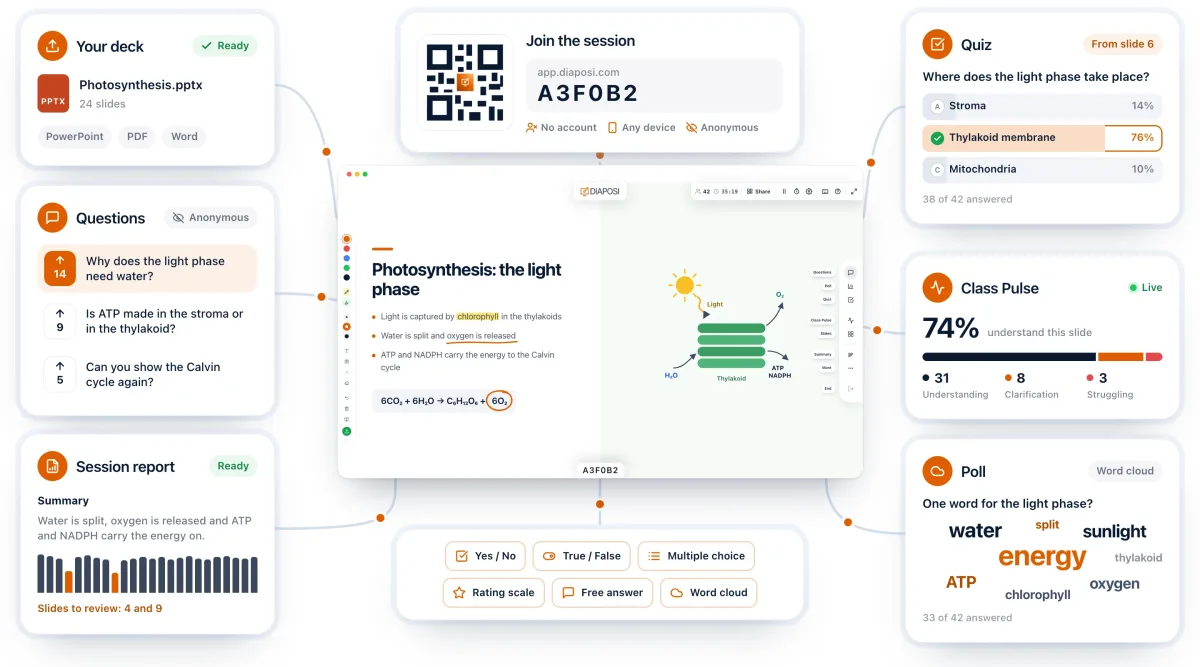
Every interaction in this guide runs in Diaposi Session, on the PowerPoint, PDF or Word file you already present. Participants join with a QR code, with no account and no app, and follow each slide on their own screen while they answer polls, send anonymous questions and take quizzes built from your slides. When the session ends, a report shows what happened, slide by slide.
Diaposi Session is part of Diaposi, the EdTech platform for interactive and measurable learning. Discover Diaposi Session
Frequently asked questions
Do I need to rebuild my slides to make a presentation interactive?
- No. An interactive presentation needs moments where the room answers, not new slides. Keep your deck, choose three or four slides where a poll, a question or a quiz makes sense, and run them from a tool that presents your own file.
How many interactions should a presentation have?
- A workable rhythm is one interaction every ten to fifteen minutes: an opening question, one or two checks in the middle and a closing one. More than that and the talk loses its thread.
Is Diaposi free?
- Yes. Diaposi is free, and there is no paid plan today.