
AI notes on the slides you present, and on the documents you study
Hosts upload their deck: Diaposi AI writes the summary, the chapters and the key questions, they correct them, and the room reads them chapter by chapter. Learners drop their own course and get its summary, Learn more on every page, flashcards and quizzes.
- Free to start, no credit card
- Participants join by QR code, no app, no account
How do participants get AI notes of a presentation?
With Diaposi. The host uploads the PowerPoint, PDF or Word deck they already have, and Diaposi AI reads it: a summary, the chapters with their slides, the key questions, and Learn more for every slide, in the deck's language. The host checks and corrects them in the cockpit. In the session, participants open AI notes in their notes panel and see the chapters as the host reaches them; signed in, they keep the whole session in their learning space, with its summary and key points, Learn more on every page, flashcards and a mock exam.
Read the moment you upload, corrected by you before the room reads it
Diaposi reads the deck
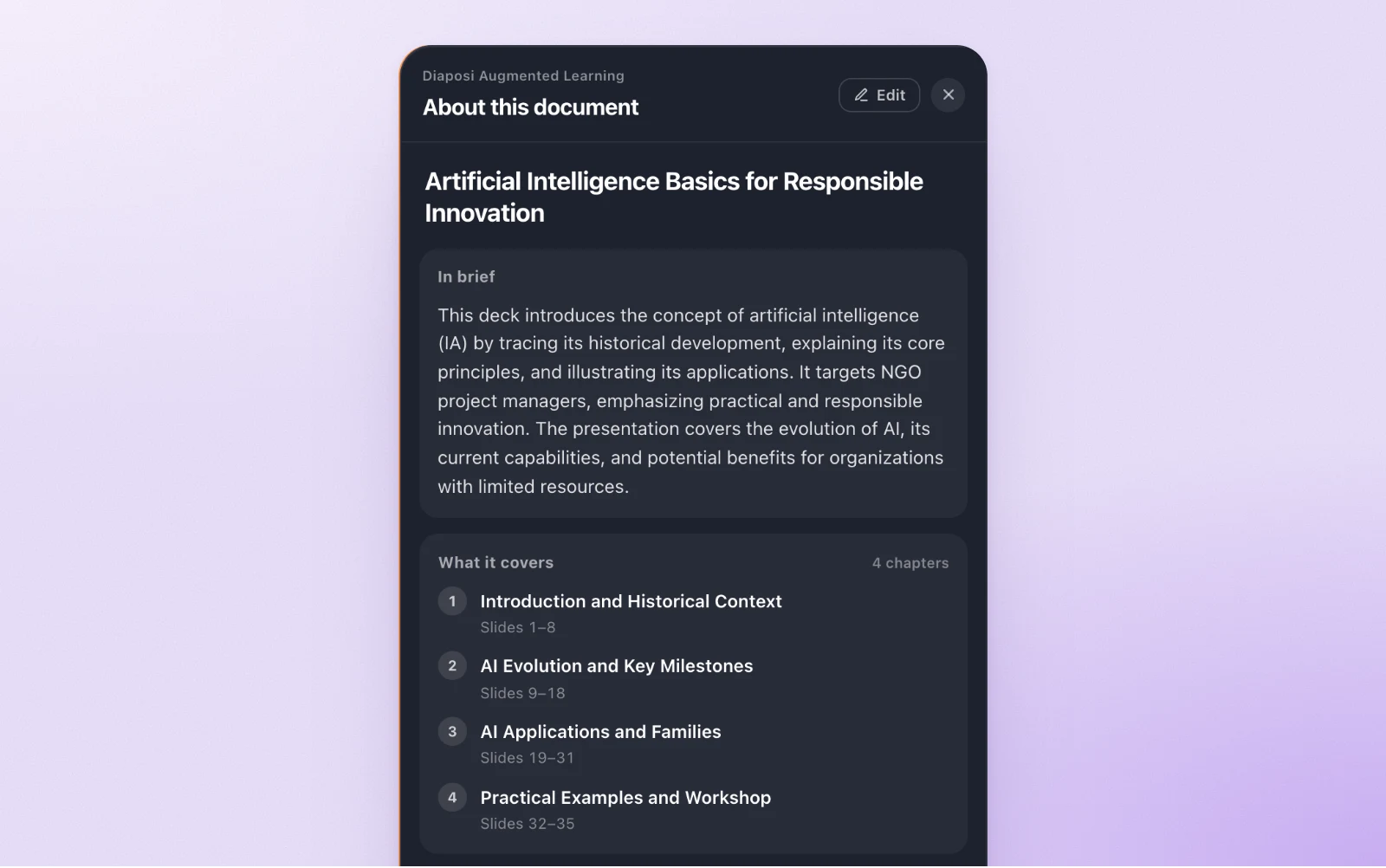
The moment you upload the file, Diaposi reads its text and writes, in its language: a summary, the chapters with their slides, the key questions a participant should answer by the end, and Learn more for every slide.
Your version is the one shown
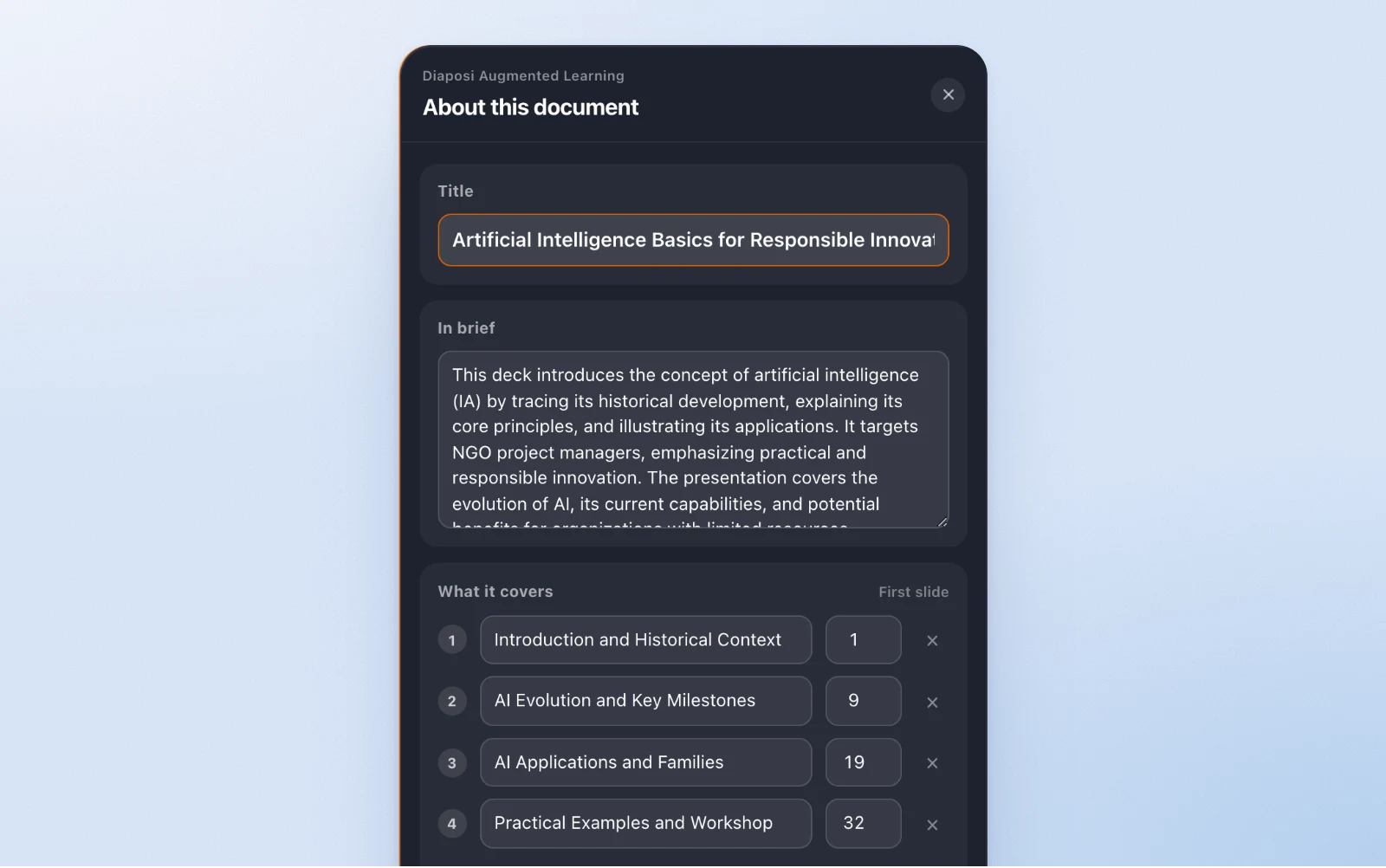
Open Summary in your cockpit and read all of it. Press Edit: the title, the summary, where each chapter starts, the key questions. Your version is saved on the deck and is what every room is shown. Back to the AI version at any time.
AI notes in three steps
Upload the deck you already have
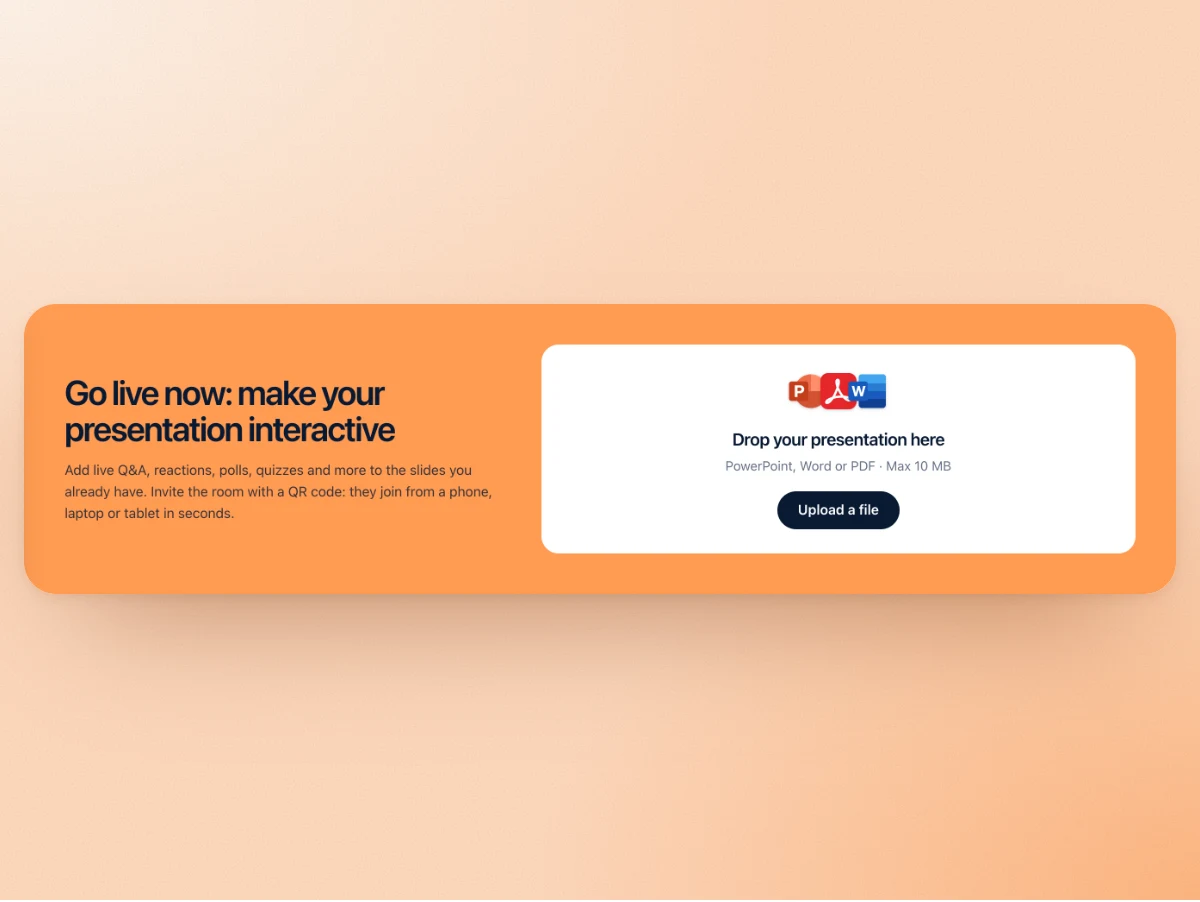
Drop the PowerPoint, PDF or Word file and start the session. Diaposi reads it while you set up: nothing to rebuild, nothing to install.
Check the summary, the chapters, the key questions
Open Summary in the cockpit. Read what Diaposi wrote, correct a title, move a chapter's start, rewrite a key question. Your version is what the room gets.
Present: the room keeps the notes
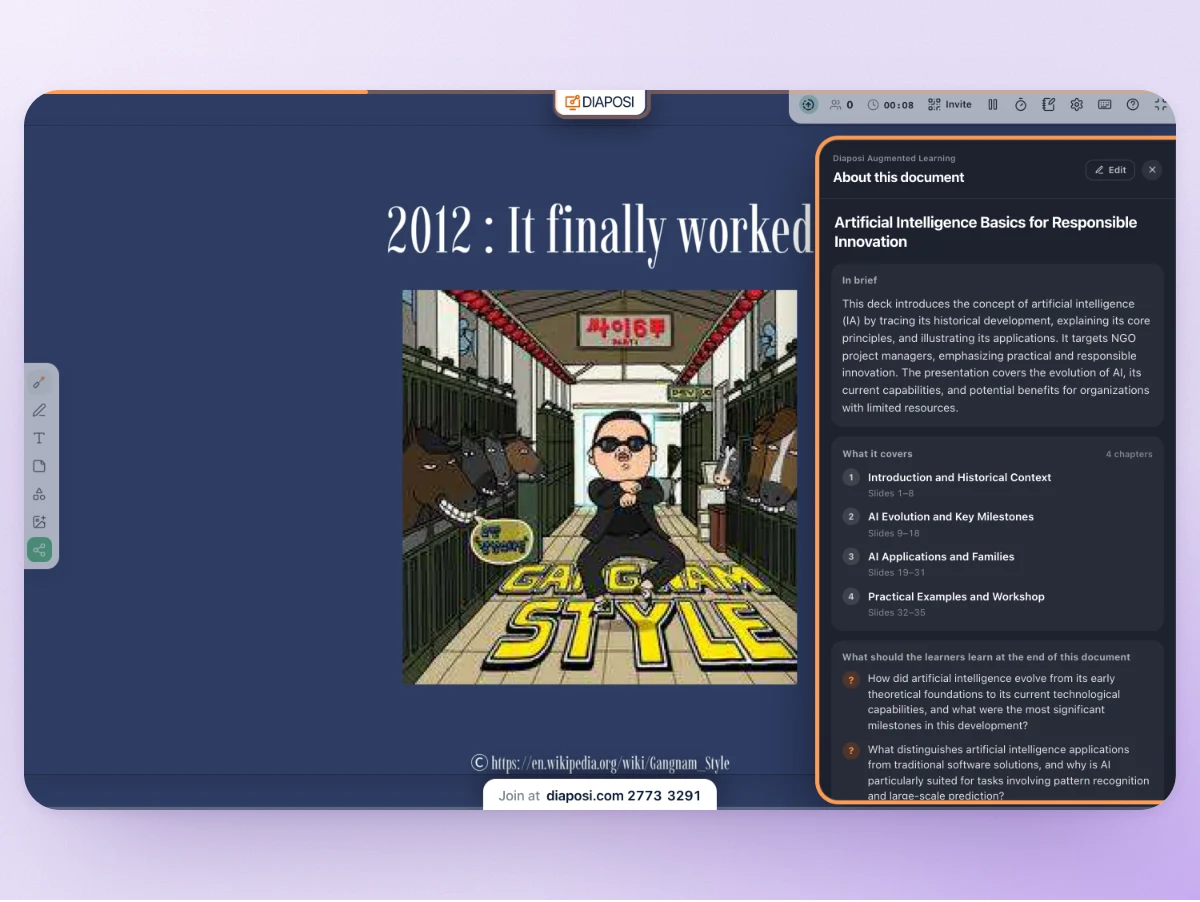
Participants open AI notes in their notes panel and see the chapters as you reach them, nothing ahead. Signed in, they keep the session in their learning space with its summary and key points, and Learn more on every page.
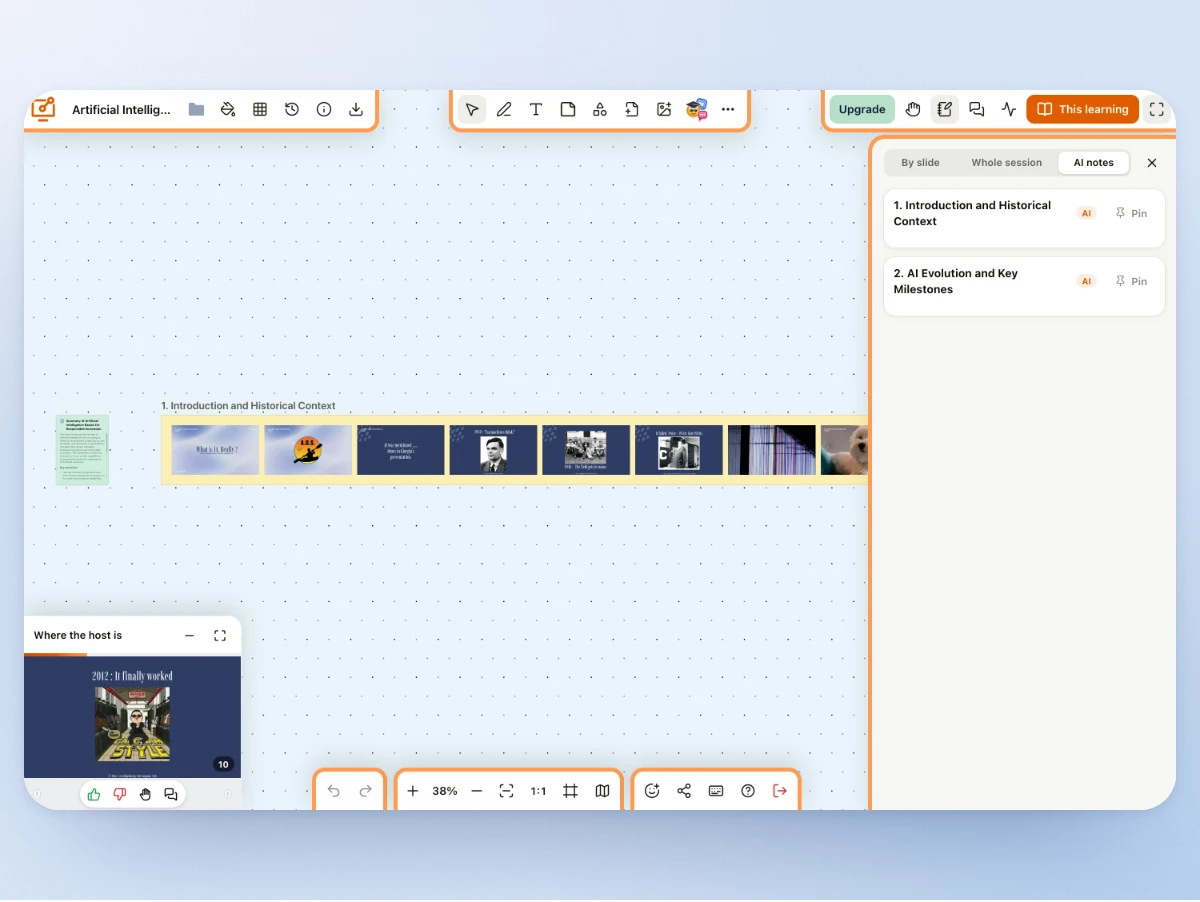
What Diaposi AI prepares from one deck
Read once, in the deck's language, and kept with the deck for every session you run with it.
- SummaryWhat the deck teaches, and to whom
- ChaptersEach with the slides it covers
- Key questionsWhat a participant should answer by the end
- Learn more on every slideSimpler words, an example, the prerequisites, a practice question, references
- FlashcardsA set per chapter, for recall practice
- Poll questionsDrafted from the slide on screen, for the host
- Quiz and mock examWritten from the chapters you pick
- Video notesCaptions, a summary with times, a quiz on the video
In the room, as you present
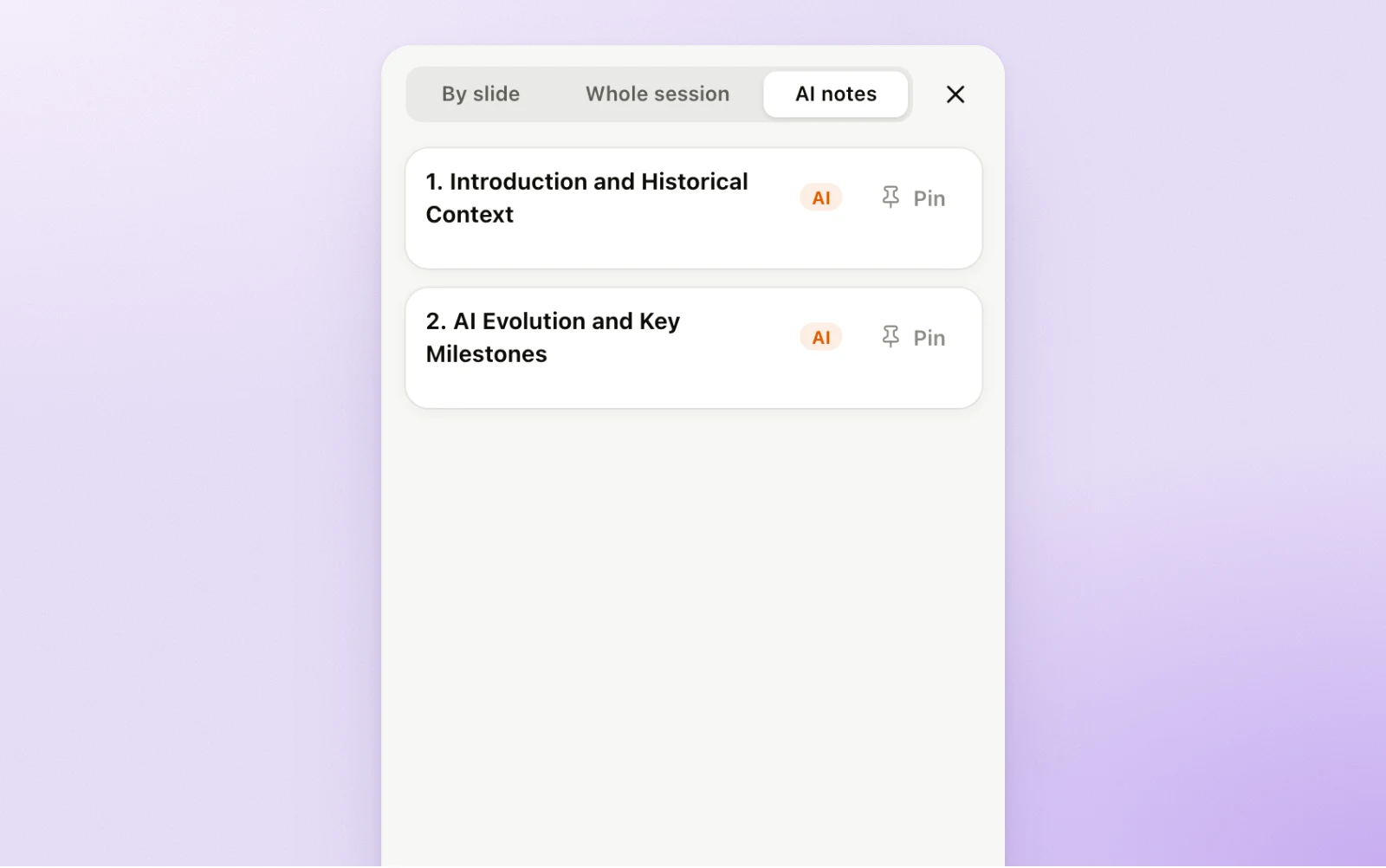
The chapters, as you reach them
In the notes panel, the AI notes tab lists the chapters as Diaposi cut the deck, numbered in order. A chapter opens once you reach it. Before that, the panel says the host has not reached this part yet.
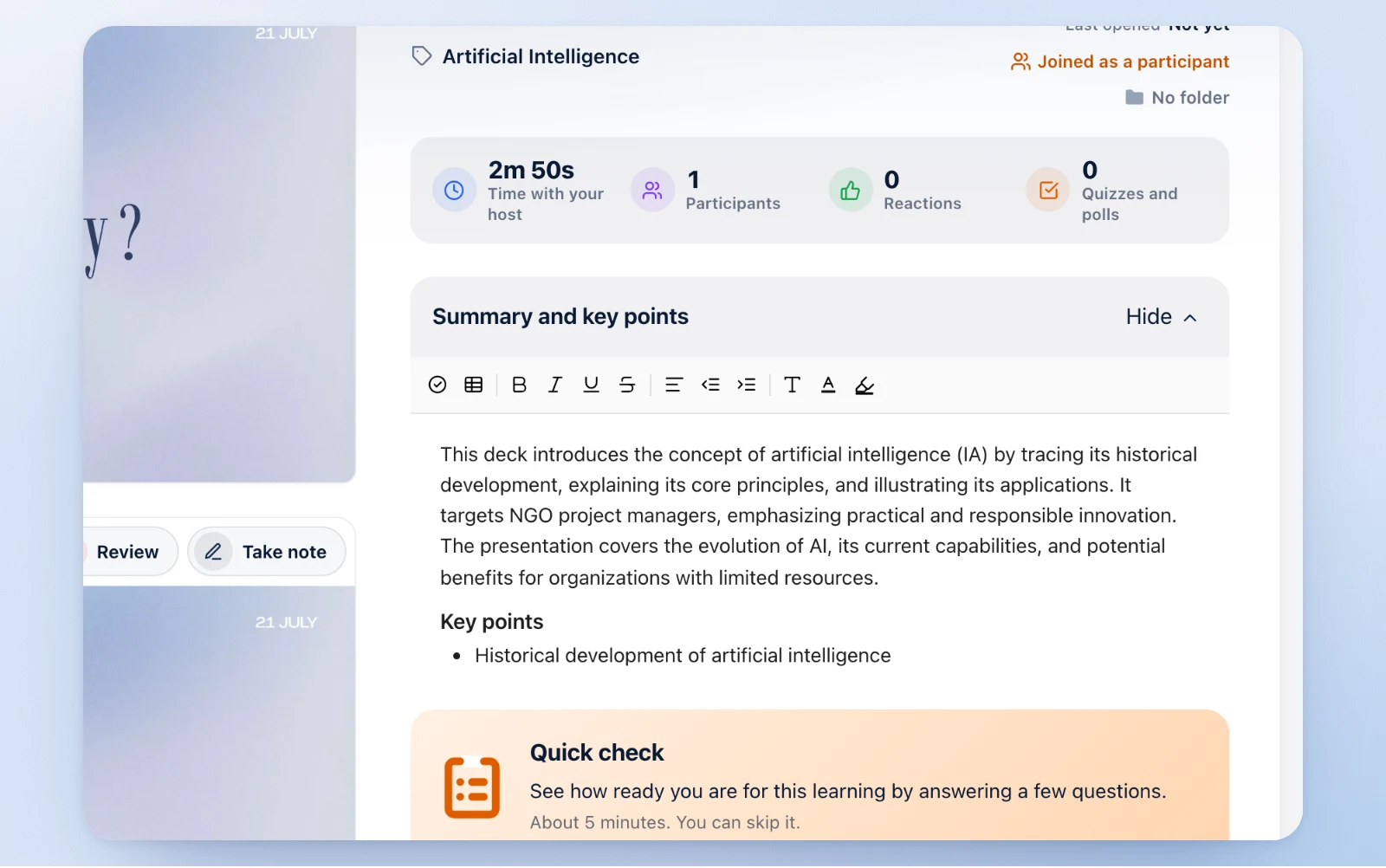
The summary and key points, as you corrected them
Signed in, a participant keeps the session as a learning, and its page carries the deck's summary and key points, the version you saved in the cockpit, with the questions the room asked on each page.
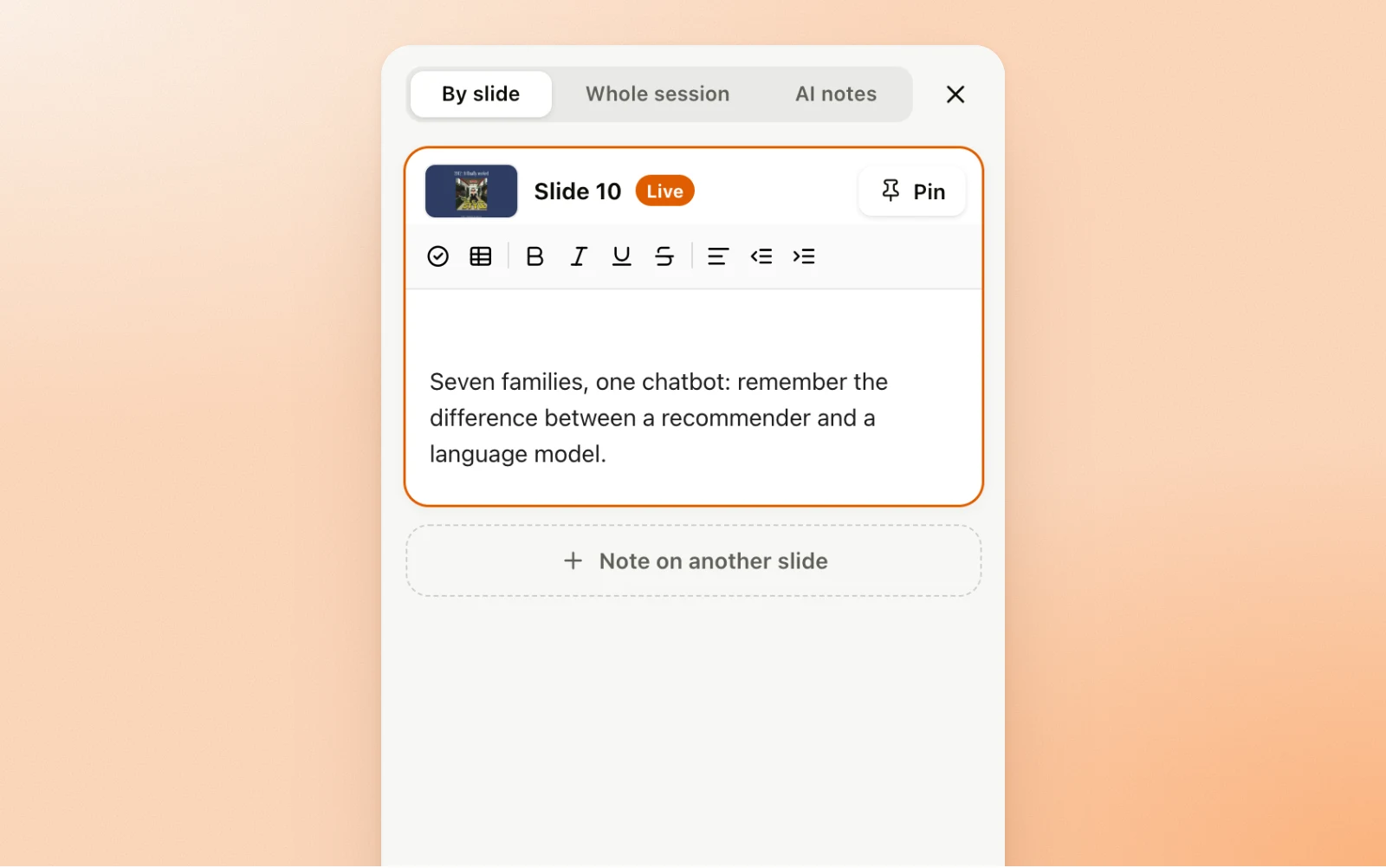
Their own notes beside the AI's
A framed note for each slide, a new one as you move on, or one note for the whole session. Each is pinned on their board with one press, and a note can be written on any slide you have shown.
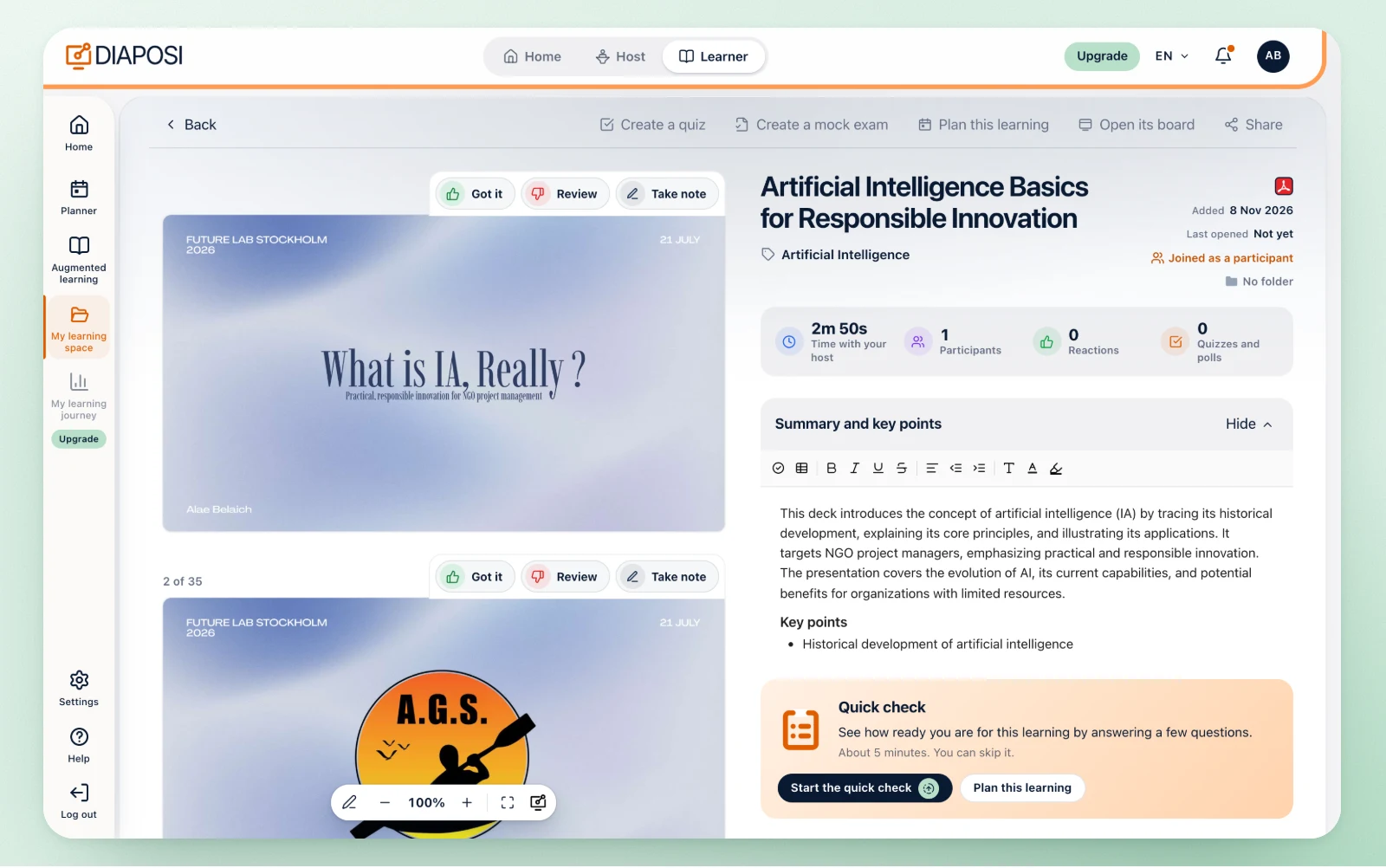
The session kept as a learning
Signed in, a participant keeps the whole session in their learning space: the pages, the summary and key points, the questions asked, Learn more on every page, flashcards and a mock exam from the same deck.
You hold the notes
Summary in the cockpit shows the title, the summary, the chapters with their slides and the key questions, as Diaposi wrote them. Edit changes any of them. Save, and the line says Edited by you, this is the version everyone sees. Back to the AI version removes your changes.
On your own documents, in Augmented learning
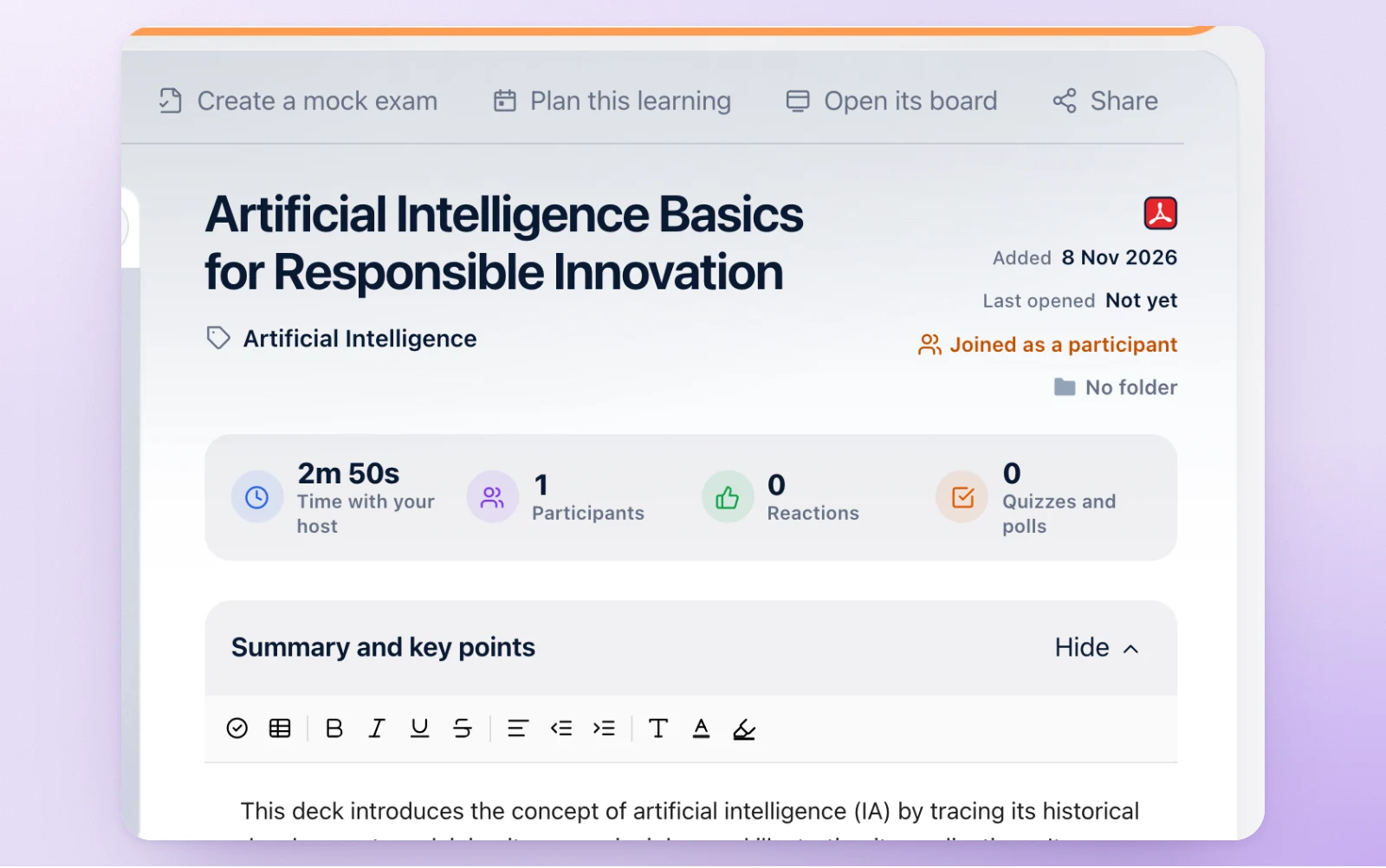
Summary and key points on upload
Drop a PowerPoint, PDF or Word file, one at a time, up to 10 MB. Diaposi reads it, names it, writes its summary and key points and cuts it into chapters. Review your upload, then study it page by page.
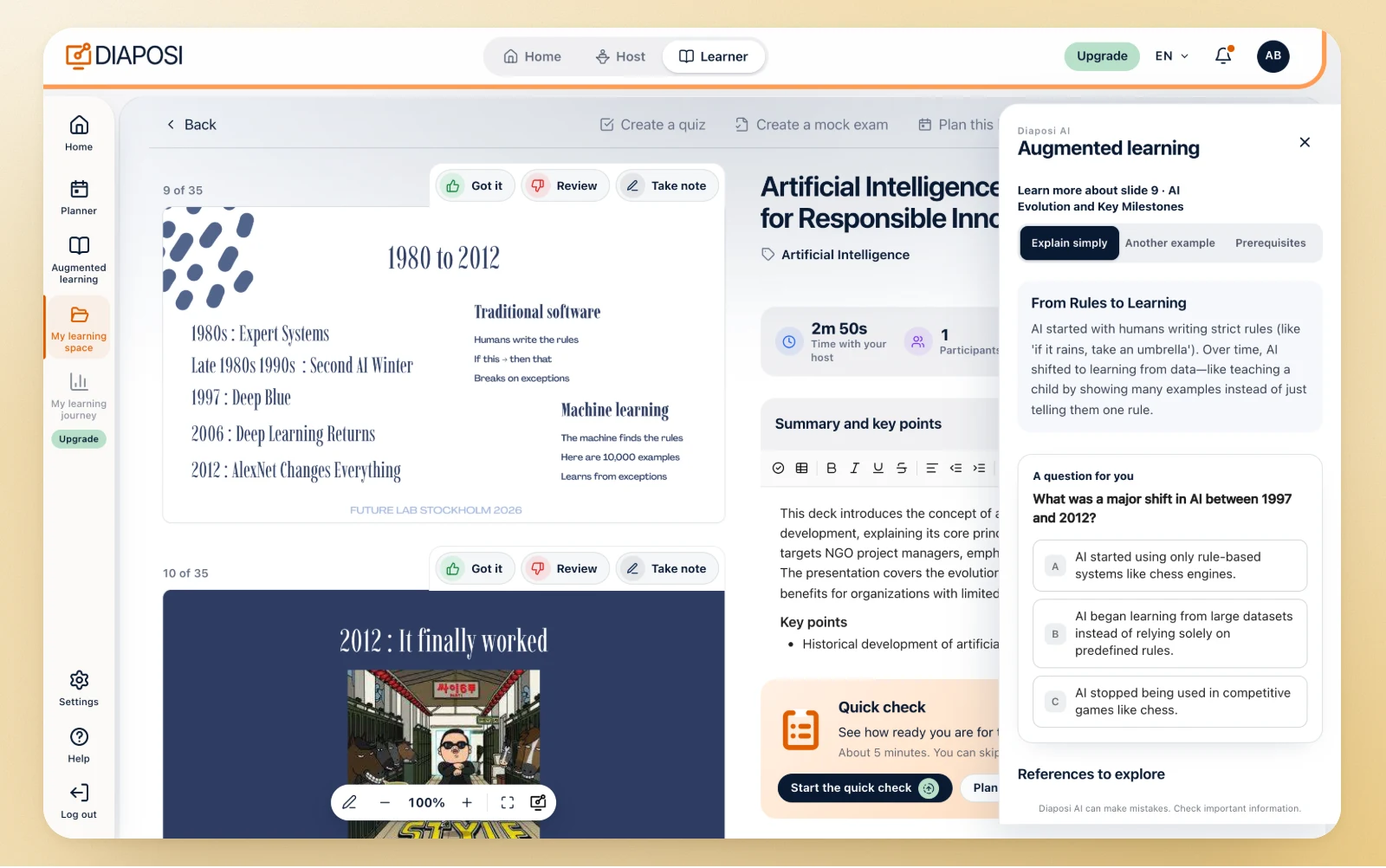
Learn more on any page
On the page you are reading: the same idea in simpler words, an example, the prerequisites, a practice question and references, written for that page, in its language.
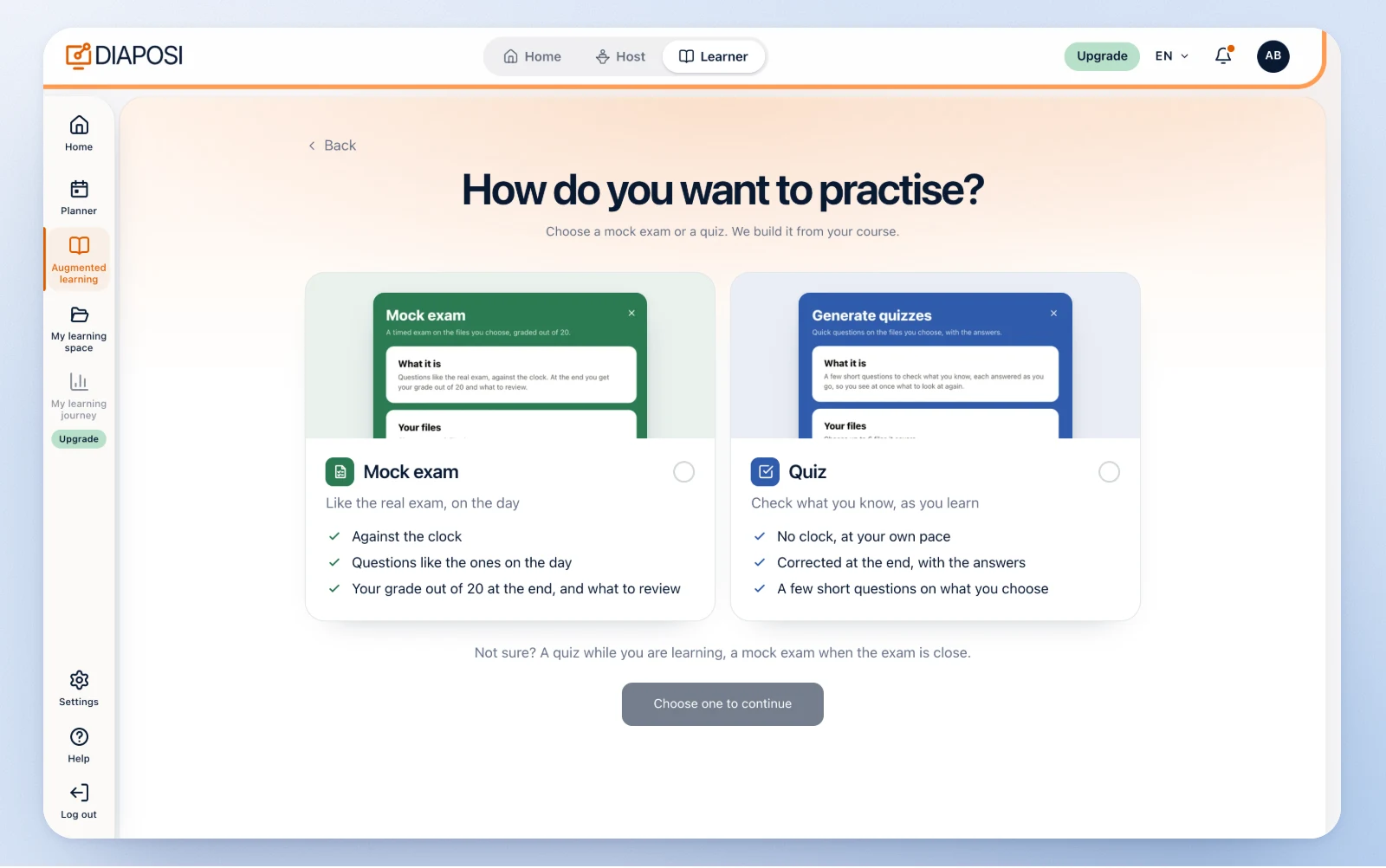
The quiz on what you just read
Quiz me on a page, the quick check of about ten questions, a chapter quiz, a final test, or a full mock exam graded out of 20: all written from your own document, never from the web.
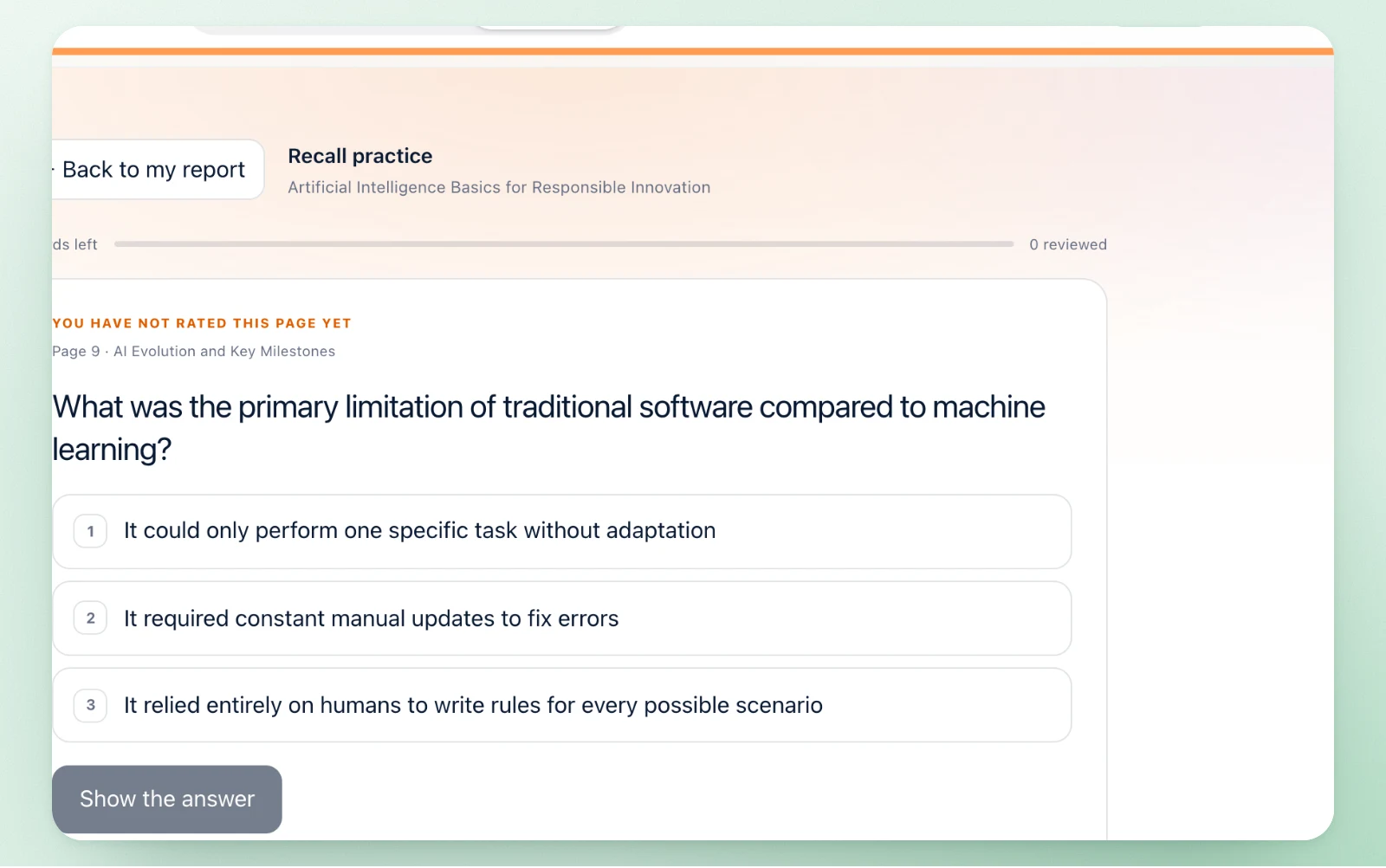
Flashcards that come back at the right time
A set per chapter. Again, or known: the cards you missed come back before the ones you know, and a card answered recently enough waits, so what you learn stays.

Notes on a video
Put a YouTube video on your board. Extract its captions, summarize it with AI, press a time in the summary to jump the video there, make a quiz on the video, translate the captions. Your notes sit beside it.
One session, every live element
The AI notes come with the Interactive session, on the same deck and the same code as the polls, the questions and the quiz.
Your own slides, no add-in
You upload the deck and present it from the browser, on any computer. The AI reads the same file; nothing is rebuilt inside PowerPoint.
Interactive sessionAnonymous questions
Participants ask from their phones, anonymously by default, and vote up the questions they share.
Anonymous Q&ALive polls drafted from the slide
The same AI drafts a poll from the slide on screen; you launch it in one press.
Live pollsA mock exam for the room
A whole paper from the deck, sat on phones under one clock, marked out of 20.
Live mock examStudy on your own
A learner uploads their own course and gets the same notes, quizzes and flashcards.
Augmented learning
Beside the notes: questions, polls and quizzes on the same slides
Where AI notes change the room
The summary, the chapters and the key questions stay with the deck, for every session you run with it, and with each participant's learning.
Frequently asked questions
Do I have to prepare anything for the AI notes?
No. Every deck you upload is read by Diaposi AI while you set up the session. You open Summary in the cockpit to check what it wrote, and correct it if you want.
In which language are the notes written?
In the language of the deck. A course in French gives notes in French, a course in English gives them in English, whatever the language of your account.
Can I change what the AI wrote?
Yes. In the cockpit, Summary shows the title, the summary, the chapters and the key questions. Edit any of them: your version is saved on the deck and is what every room is shown, until you press Back to the AI version.
Can participants read ahead?
No. A chapter opens in the room once you reach it. Before that, the panel says the host has not reached this part yet.
Do participants need an account?
To join, no: they scan the QR code or type the eight-digit code. To read the AI notes and keep the session in their learning space, they sign in. Their own notes work either way.
Does it work on my own documents, without a session?
Yes. In Augmented learning, a learner drops a PowerPoint, PDF or Word file and gets its summary and key points, Learn more on any page, flashcards, a quick check, quizzes and a mock exam, all written from that document.
What about videos?
On the learner's board, a YouTube video gets its captions extracted, a summary with times that jump the video, a quiz on the video and a translation of the captions, with your notes beside it.