
A live quiz on your own slides, for your whole room
Hosts run quizzes for their participants, live on the slides they present. Learners turn their own slides into a quiz and practise on their own.
- Free to start, no credit card
- Participants join by QR code, no app, no account
What was the key technological breakthrough in 2012 that marked the return of deep learning?
What AI tool lets you run a live quiz from your slides?
Diaposi. Upload the PowerPoint, PDF or Word deck you already present. In the session, open the Live quiz panel: Diaposi writes the questions from the chapters you pick, or you write your own, and you read every right answer before the room sees it. Participants join by QR code, answer on their phones, and the podium closes the quiz.
Written from your slides by the AI, or written by you
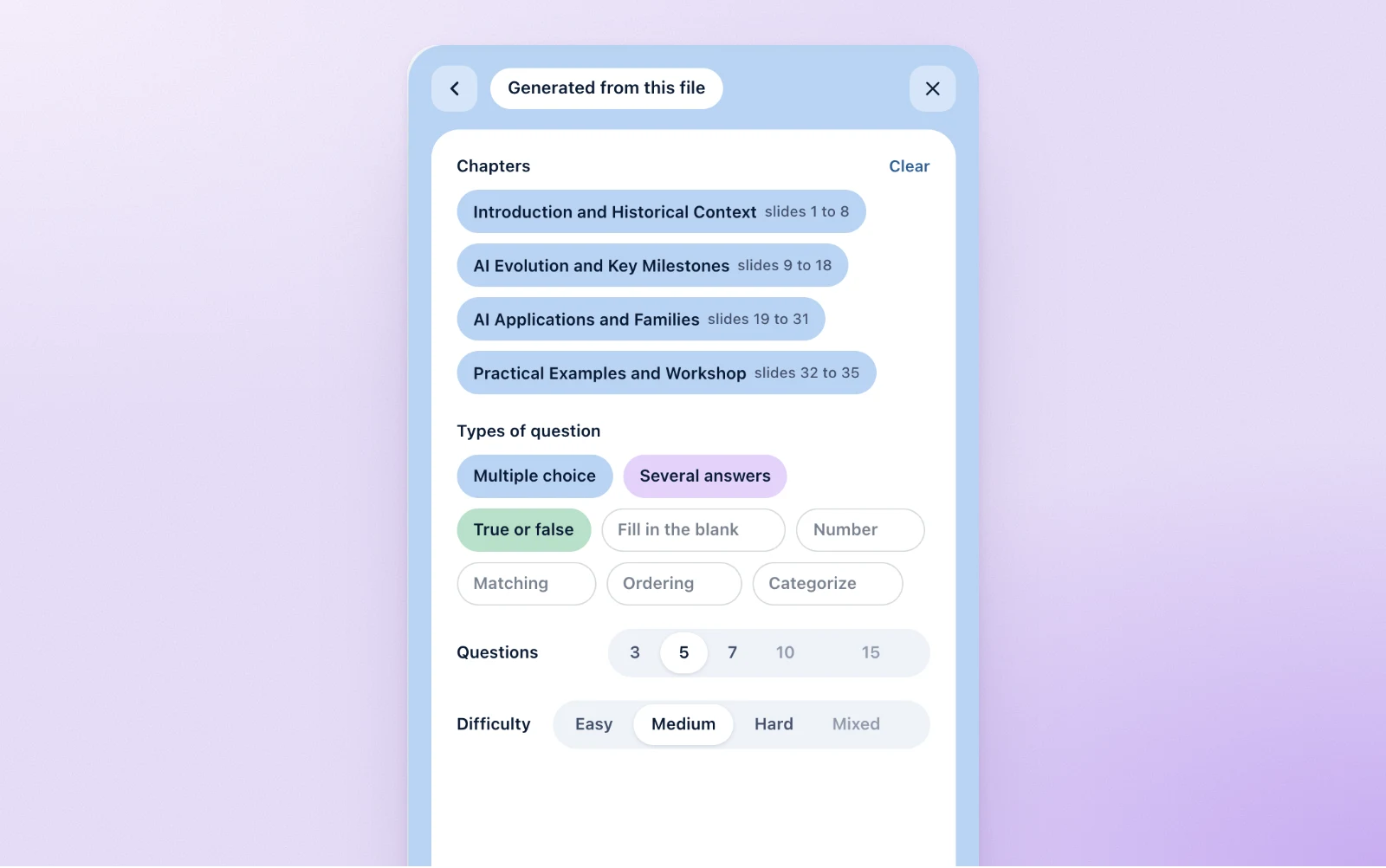
Generated from this file
Pick the chapters, the kinds of question, how many and how hard. Diaposi reads the text of your slides and writes the questions in their language, each with its right answer and a line on why.
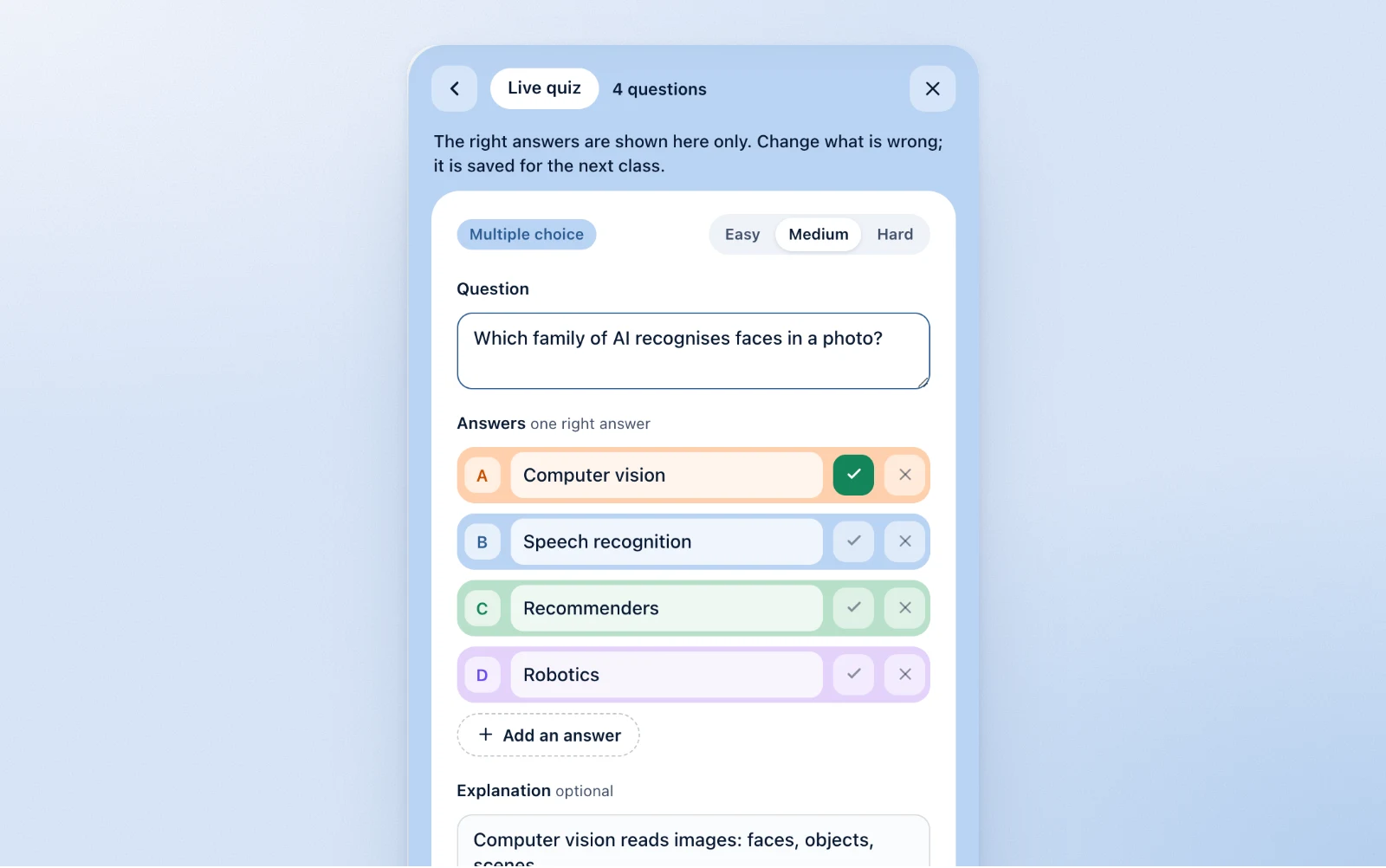
Written by you
Add a question of any kind, mark its right answer, give it its own time. Everything is saved to your dashboard as you go, and you read it all before the room does.
A live quiz in three steps
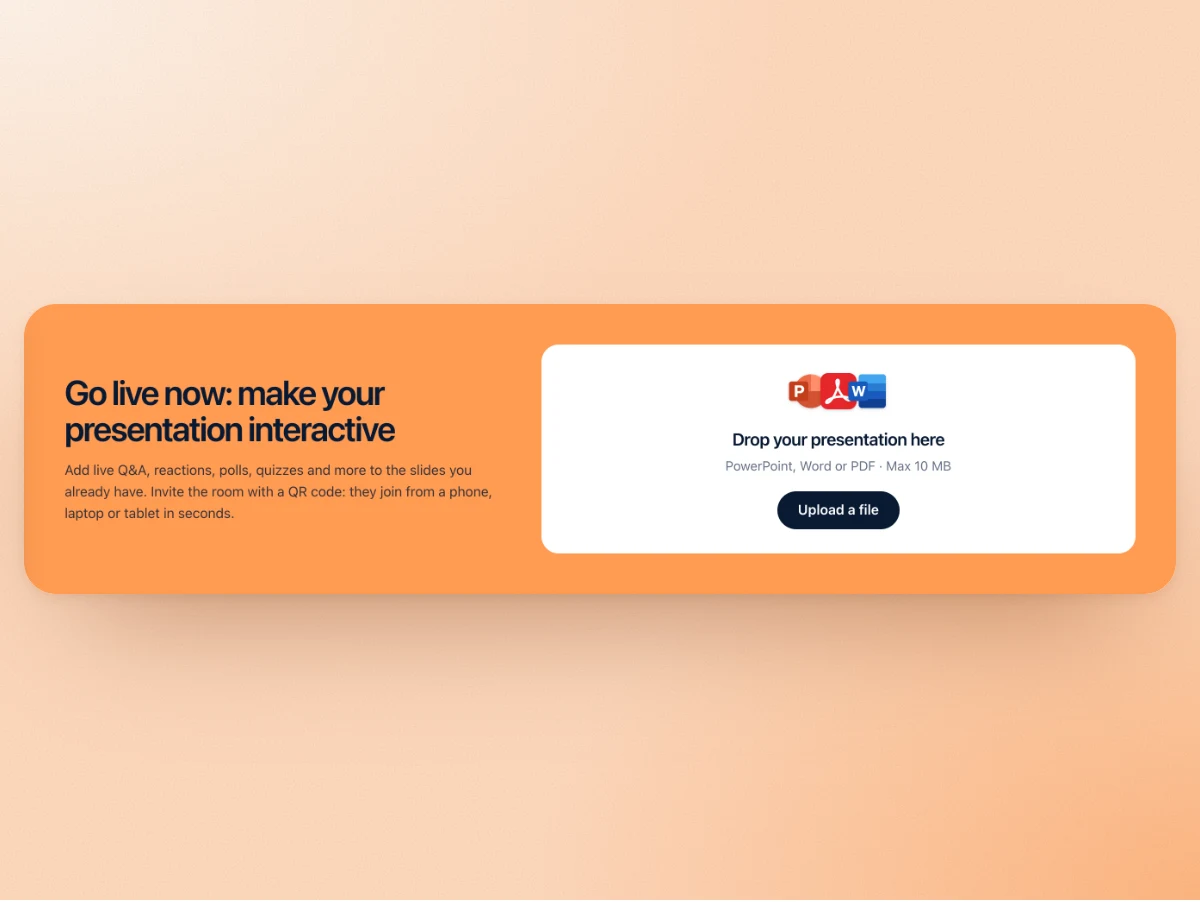
Upload the deck you already have
Drop the PowerPoint, PDF or Word file and start the session. Nothing to rebuild, nothing to install: it opens as it is.
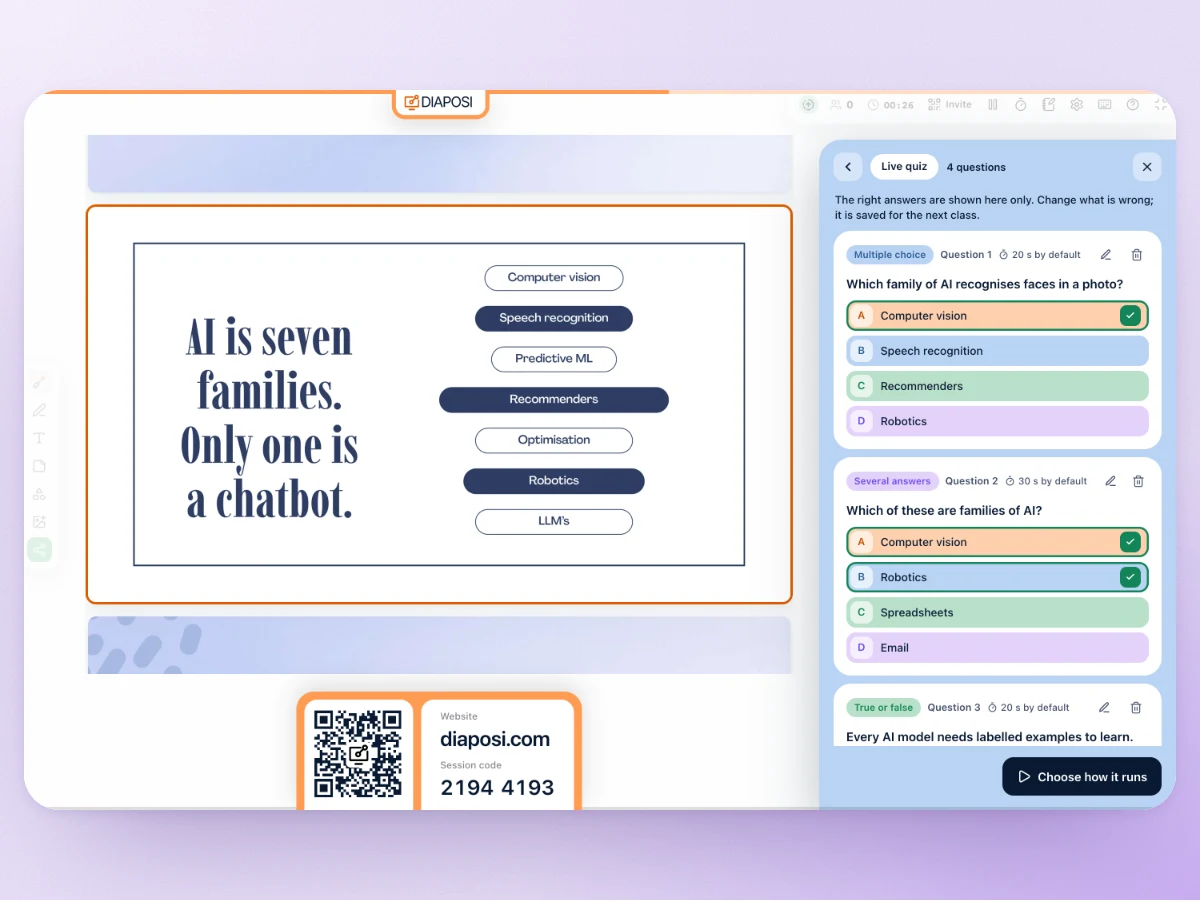
Build the quiz beside your slides
Open the Live quiz panel. Diaposi writes the questions from your slides, or you write them. Read every right answer, then choose how it runs: together or at their own pace, the time per question, the points, the leaderboard.
Launch it: the room plays
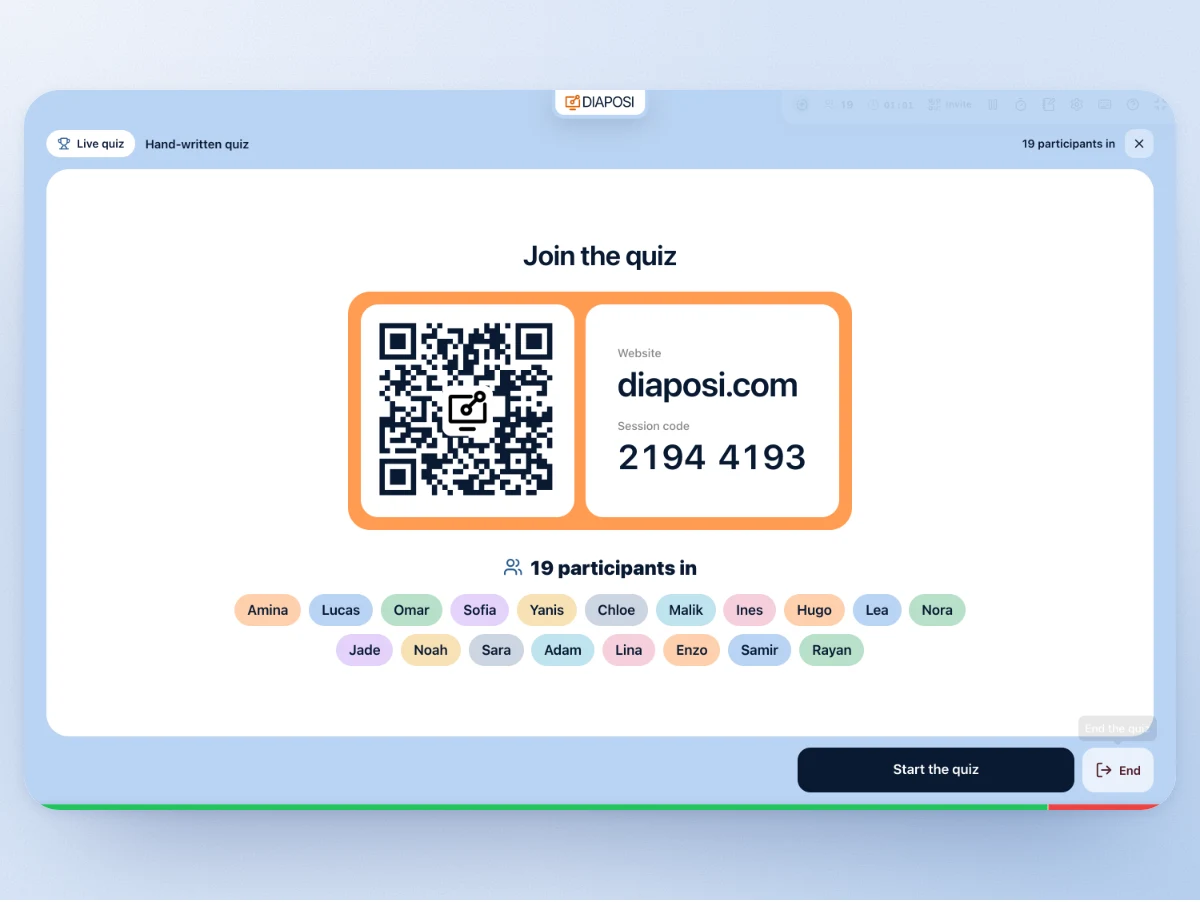
The lobby shows the QR code and the eight-digit code. Participants pick a nickname, answer each question on their phone, and the podium closes the quiz.
Nine kinds of question, marked the moment they are answered
Each kind has its own answer card on the phone and its own way of being marked.
- Multiple choiceOne right answer
- Several answersTick every right one
- True or falseA statement to judge
- Fill in the blankA word to type, every accepted spelling allowed
- NumberA number to work out, give or take a margin
- MatchingPairs to match, credit for each one right
- OrderingSteps to put in order
- CategorizeItems to sort into groups
- Free answerWritten, not scored
On the big screen, and on every phone
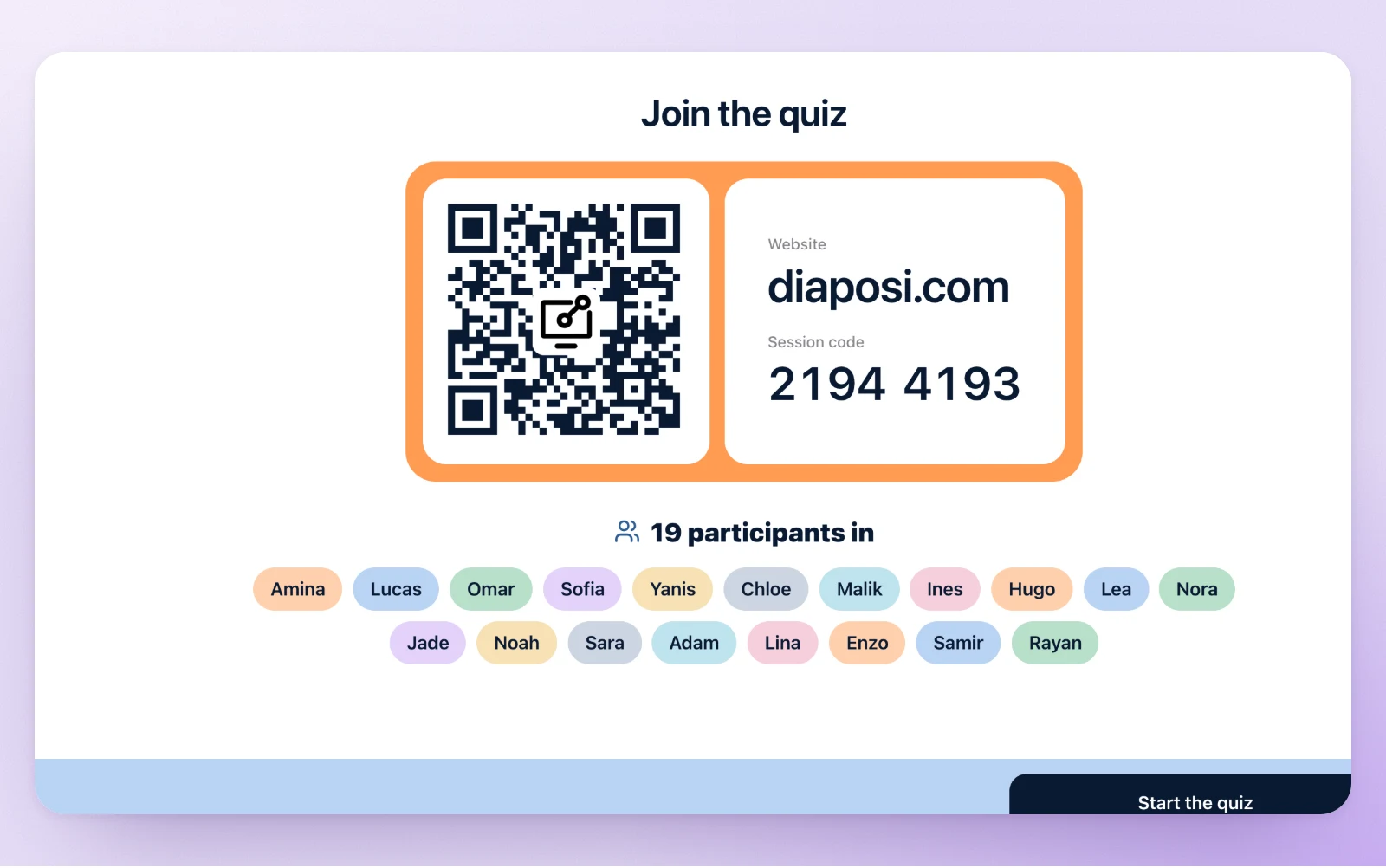
The lobby: a QR code, a code, the nicknames arriving
The quiz takes your whole screen. The room scans the QR code or types the eight-digit code at diaposi.com, and each nickname appears as it arrives. No nicknames: the answers stay anonymous.
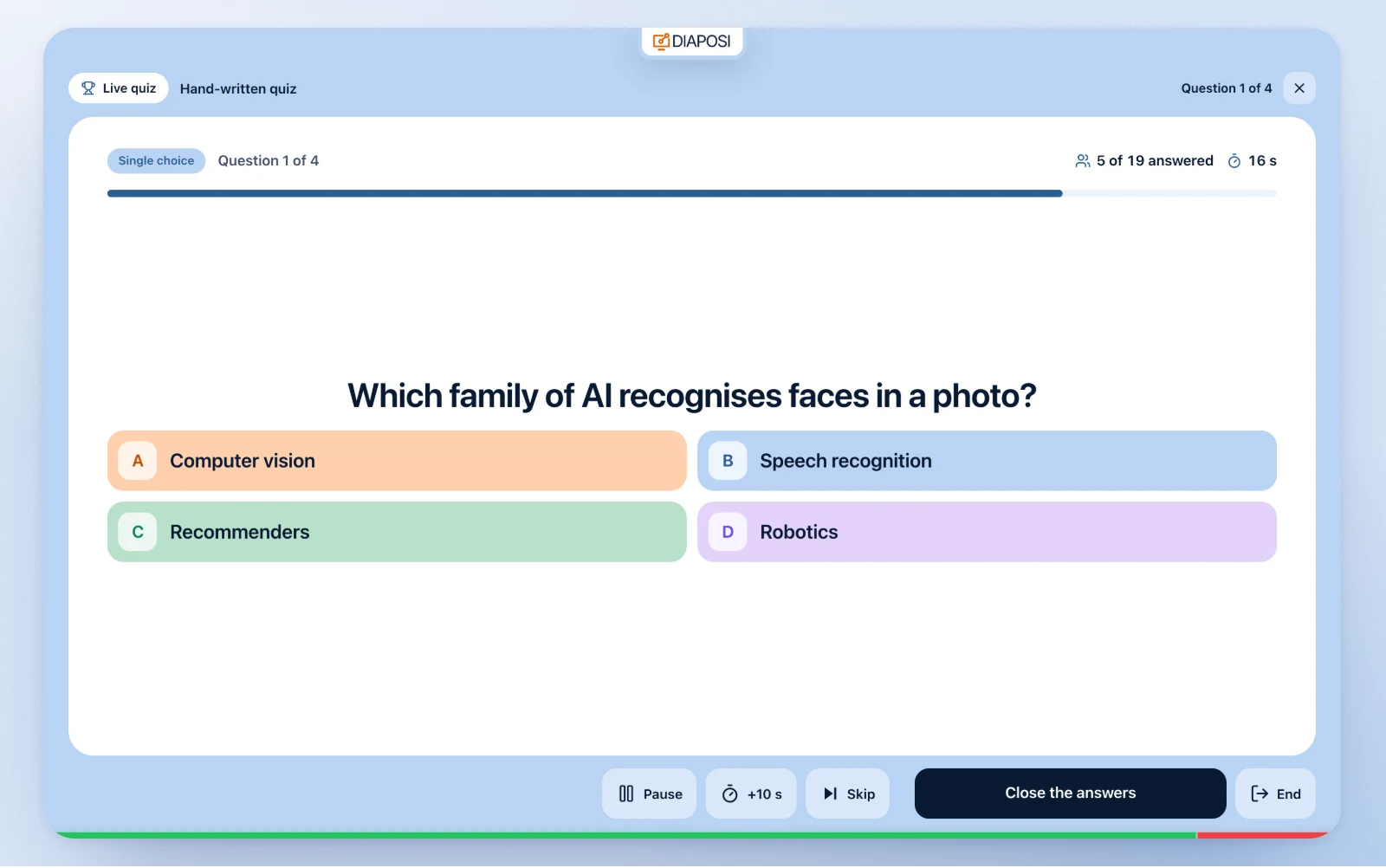
Each question, large, with its clock
The question and its answers fill the screen, with the countdown and how many have answered. Answers closed, the split appears. Answer shown, the right one is ticked, the rest fade, and the why sits under it.
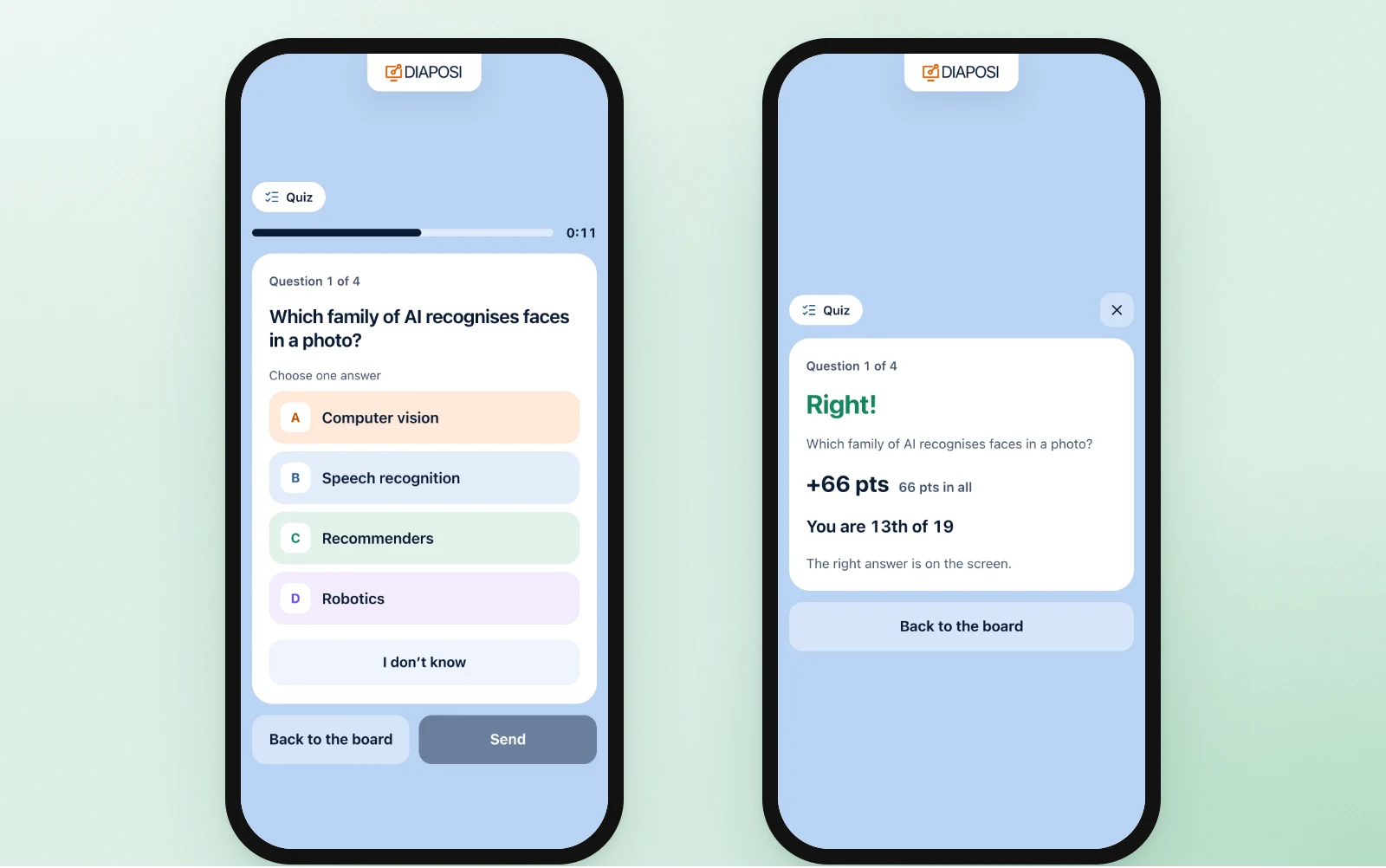
On the phone: the question, then their own verdict
Participants answer with a tap, type a word or a number, pair, order or sort, or say I don’t know. The right answer stays on the big screen. Their phone shows their own verdict, their points and their place.
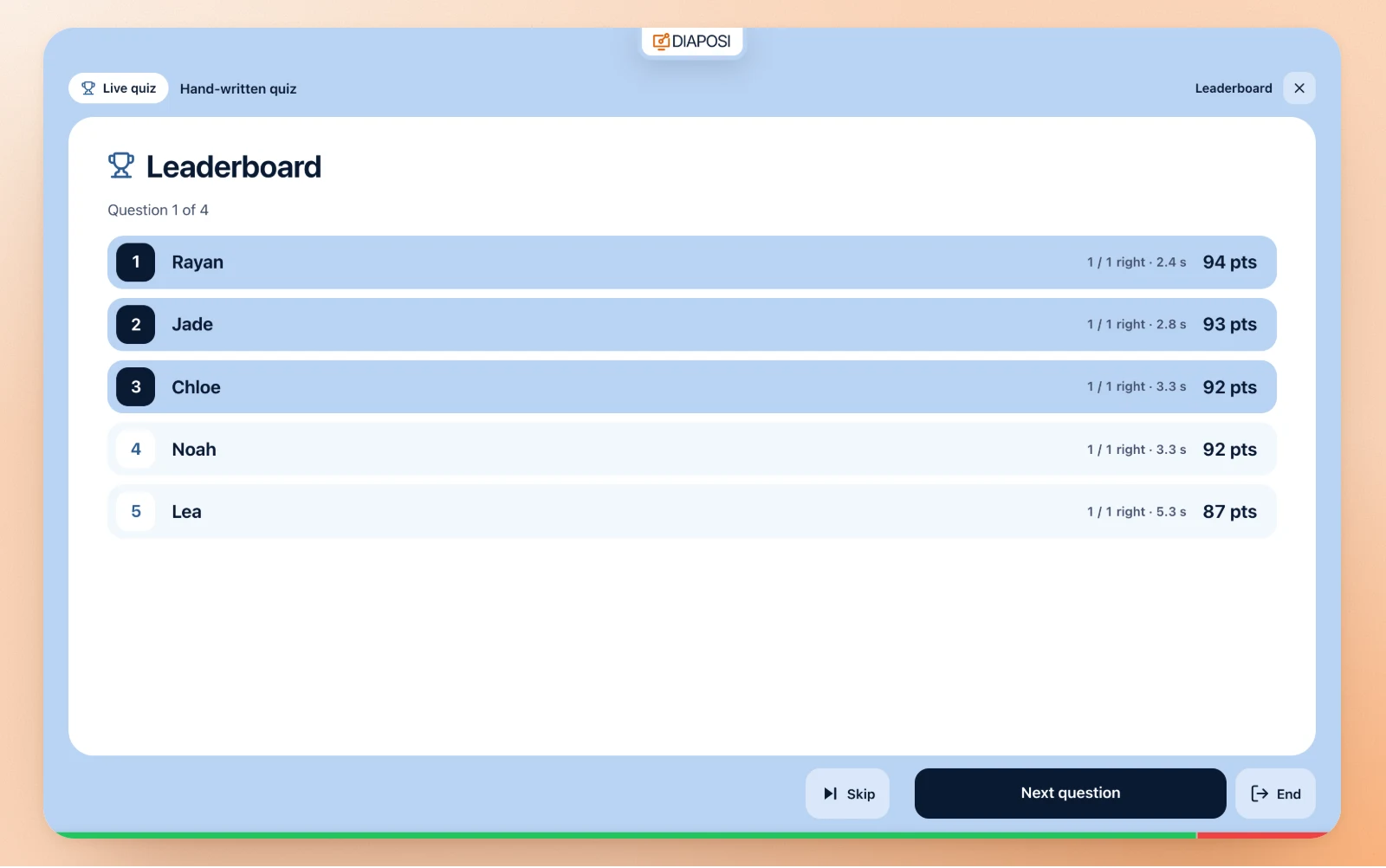
Leaderboard and podium
A right answer is worth the same points for everyone, or more when it is faster: you choose. The leaderboard after every question or at the end, then the podium, with the hardest question, the easiest and the room’s average.
You hold the clock
Start, close the answers, show the answer, leaderboard, next question, podium: one main button follows the step, and Space or the right arrow presses it. Pause the clock, give ten more seconds, skip a question, end the quiz. At their own pace, the screen shows who is where instead. Hide the quiz and the slide comes back.
What you keep after the quiz
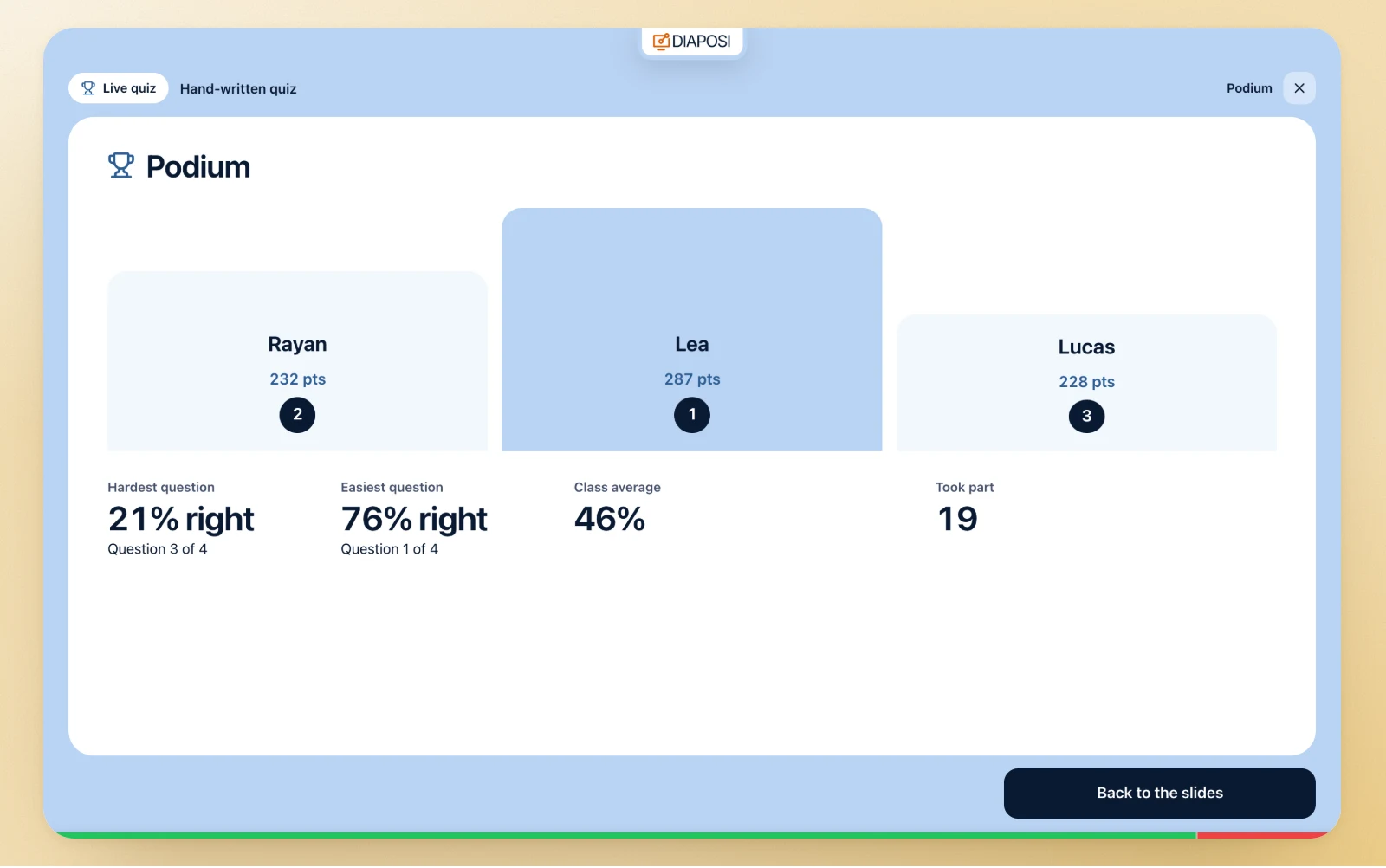
The results, on the screen, right away
Right overall, who took part, the hardest and the easiest question, the top three. Open any question to see what the room answered, option by option, and what it wrote.
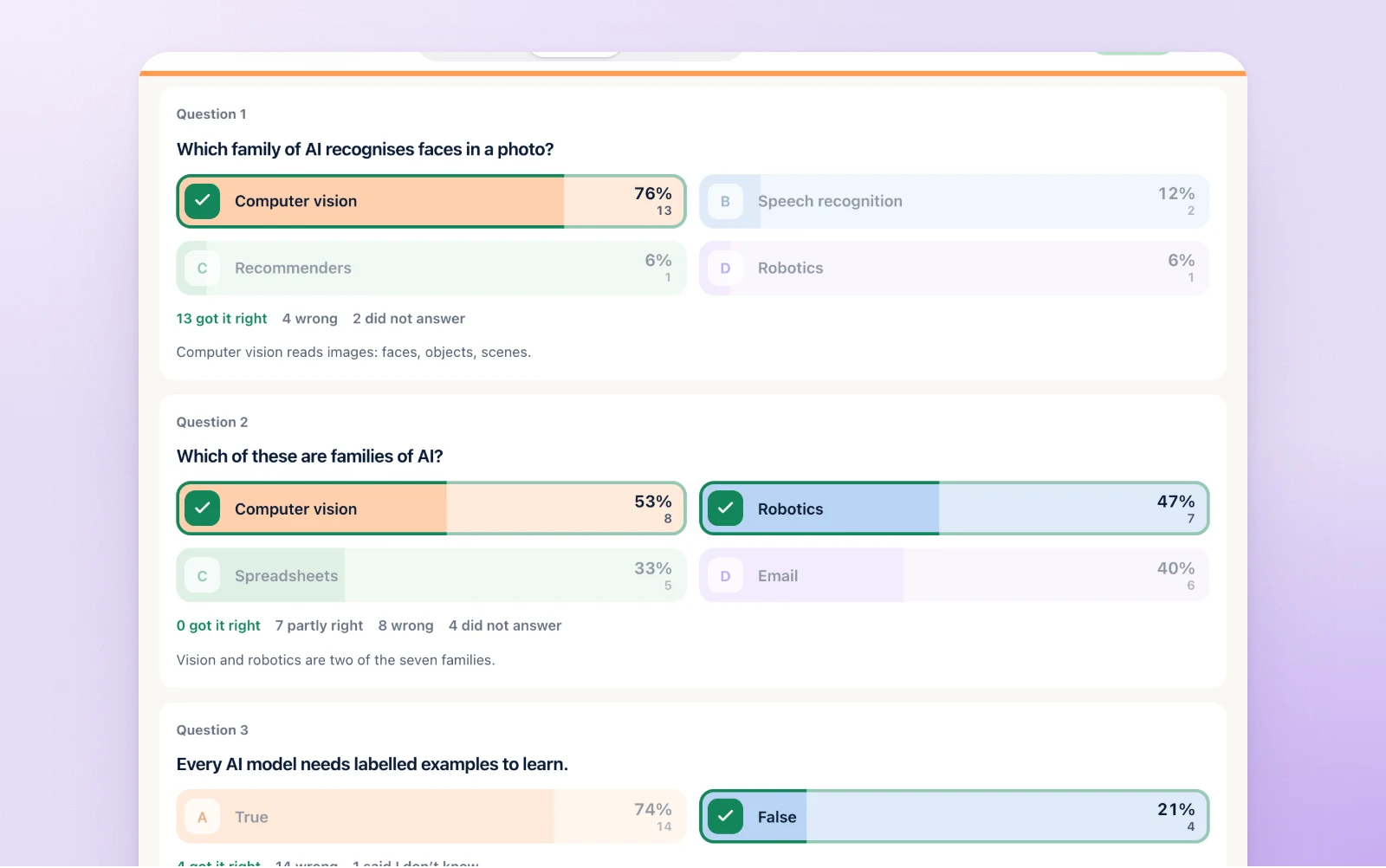
The session results in your dashboard
Every quiz of the session sits in its results, each question drawn as the screen drew it: the split, the right answer ticked, the written answers grouped, the why. The quiz itself is saved in your dashboard too.
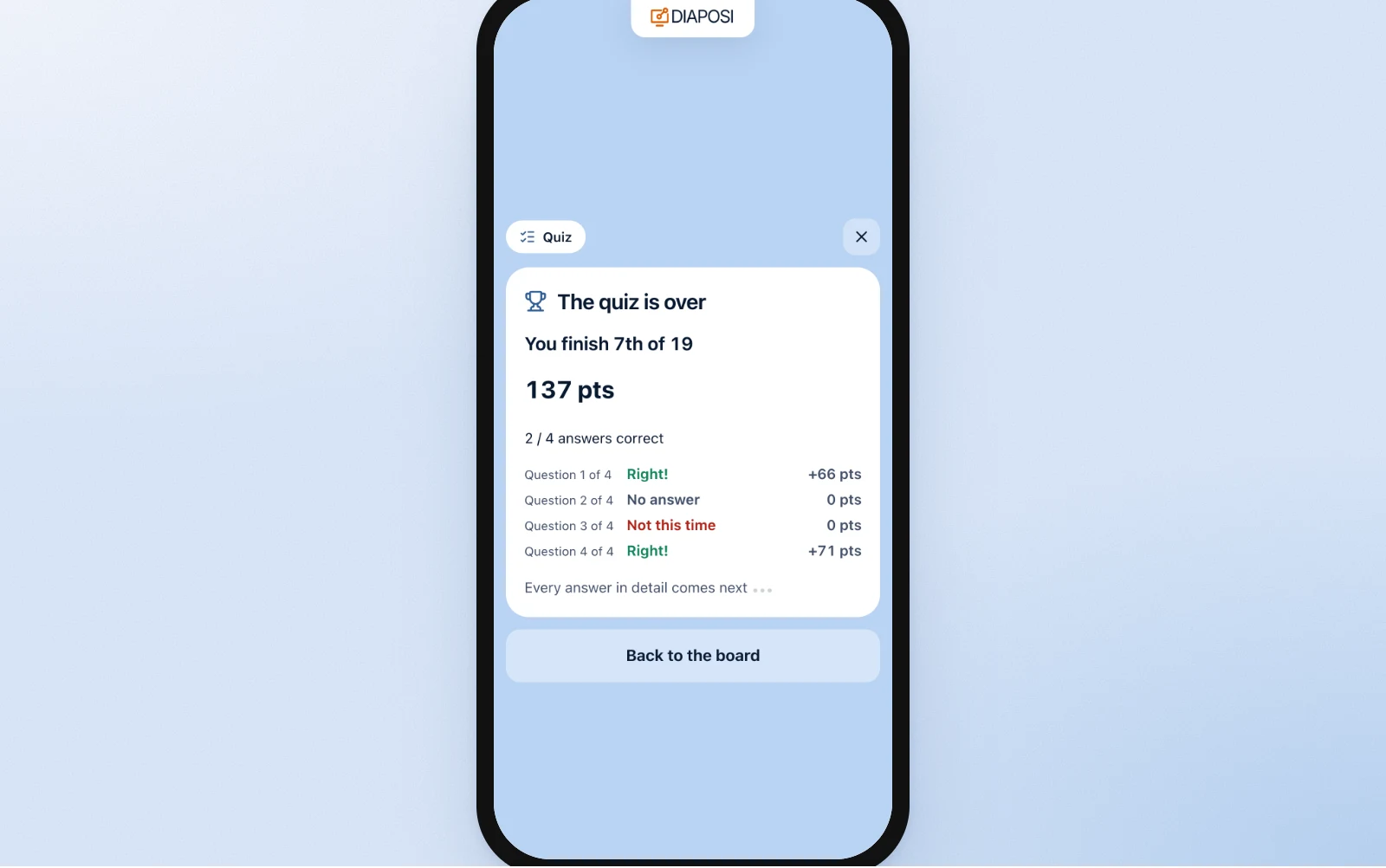
Their own results, on their phone
When the quiz ends, each participant sees their score, their place, and every answer against the right one. Each phone gets its own marks only.
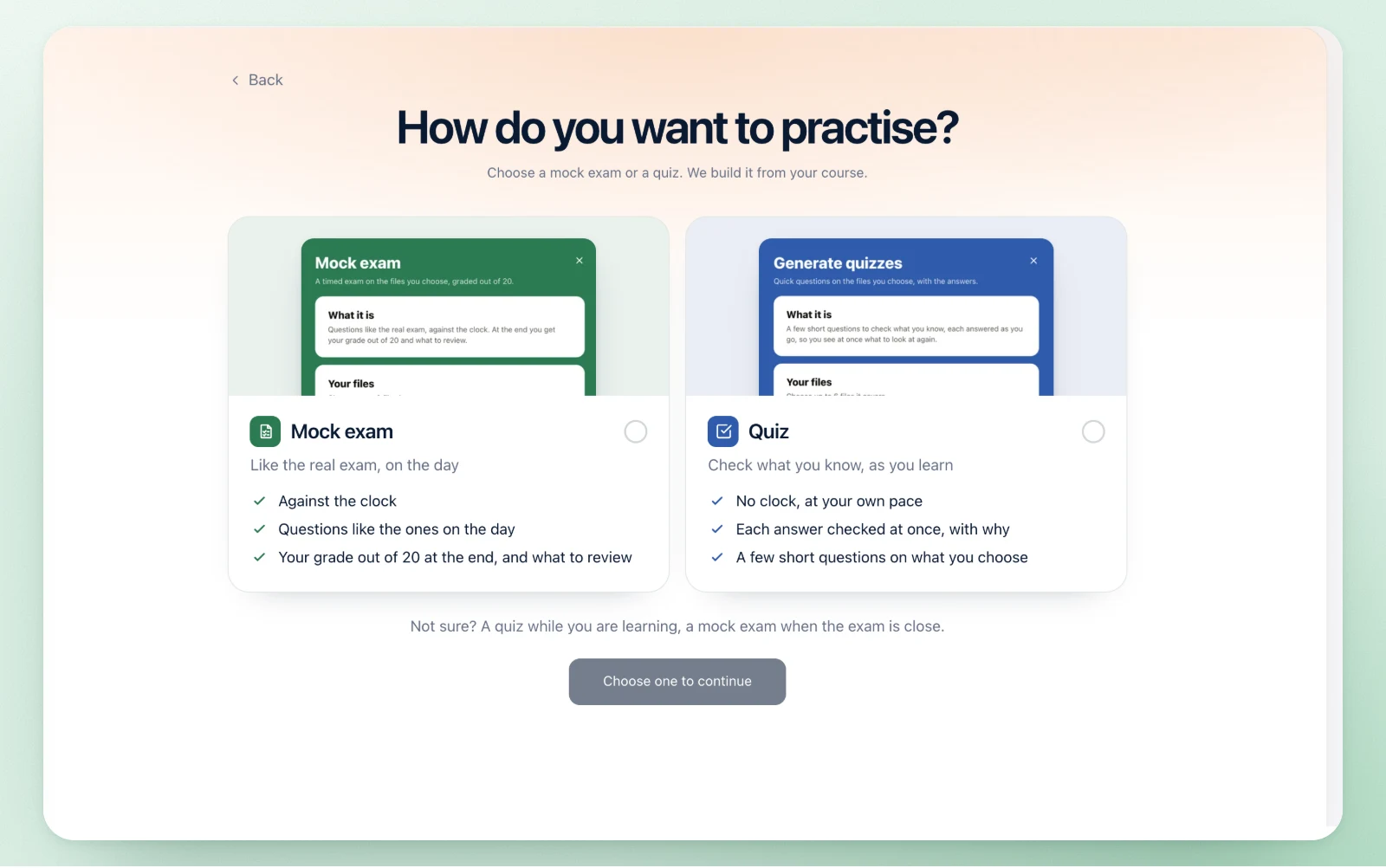
Practice afterwards, on their own
On their own board, a signed-in participant can make a practice quiz or a mock exam from the same slides, and keep learning after the session.
One session, every live element
The quiz runs beside the other elements of the Interactive session, on the same deck and the same code.
Your own slides, no add-in
You upload the deck and present it from the browser, on any computer. The quiz is a panel beside your slides, never a plug-in inside PowerPoint.
Interactive sessionAnonymous questions
Participants ask from their phones, anonymously by default, and vote up the questions they share.
Anonymous Q&ALive polls and word clouds
Ask the room in the middle of a slide and watch the answers arrive under it.
Live pollsA survey before they leave
Ratings, choices and free answers at their own pace, with no right answer and no score.
Live surveyThe slides on their phones
Participants follow the slide in front of them, and a quiz question can show it above the answers.
Slides on participants’ phonesPractice after the session
A participant makes a practice quiz or a mock exam from the same slides, on their own, with explanations.
Practice session
Beside the quiz: questions, polls and surveys on the same slides
Where a live quiz changes the room
Every quiz is kept with its results, in the session report and your dashboard, for 12 months.
Frequently asked questions
Can I run a live quiz on my PowerPoint without an add-in?
Yes. You upload the PowerPoint, PDF or Word file and present it from the browser, on any computer, Mac included. The quiz opens in a panel beside your slides, with nothing installed.
Can the quiz be written from my slides?
Yes. Diaposi reads the text of your slides and writes the questions from the chapters you pick, in the language of the deck, each with its right answer and a line on why. You read and edit every question before the room sees it.
Do participants need an app or an account?
No. They scan the QR code or type the eight-digit code in any phone browser, pick a nickname if the quiz asks for one, and answer. Only the host has an account.
How are the answers scored?
Each scored question is worth one point, marked the moment the answer lands. Matching, ordering and categorize earn a share for every item in its place, and a free answer is collected, not scored. Leaderboard points are the same for every right answer, or higher for a faster one, as you choose.
Is the live quiz free?
Yes. Hosting is free to start, with no card, and participants never pay. The paid plans, Starter and Pro, are for learners.
What do I keep after the quiz?
The results on the screen the moment it ends, then every question with the room’s answers in the session results of your dashboard, kept for 12 months. Each participant keeps their own score and answers on their phone.