
A live word cloud on your slides, from every phone in the room
Ask the room for a word. Participants type it on their phone with a code or a QR code, and the cloud grows on your screen as the answers arrive, the most given in the biggest type. Nothing to install, no add-in.
- Free to start, no credit card
- Participants join by QR code, no app, no account
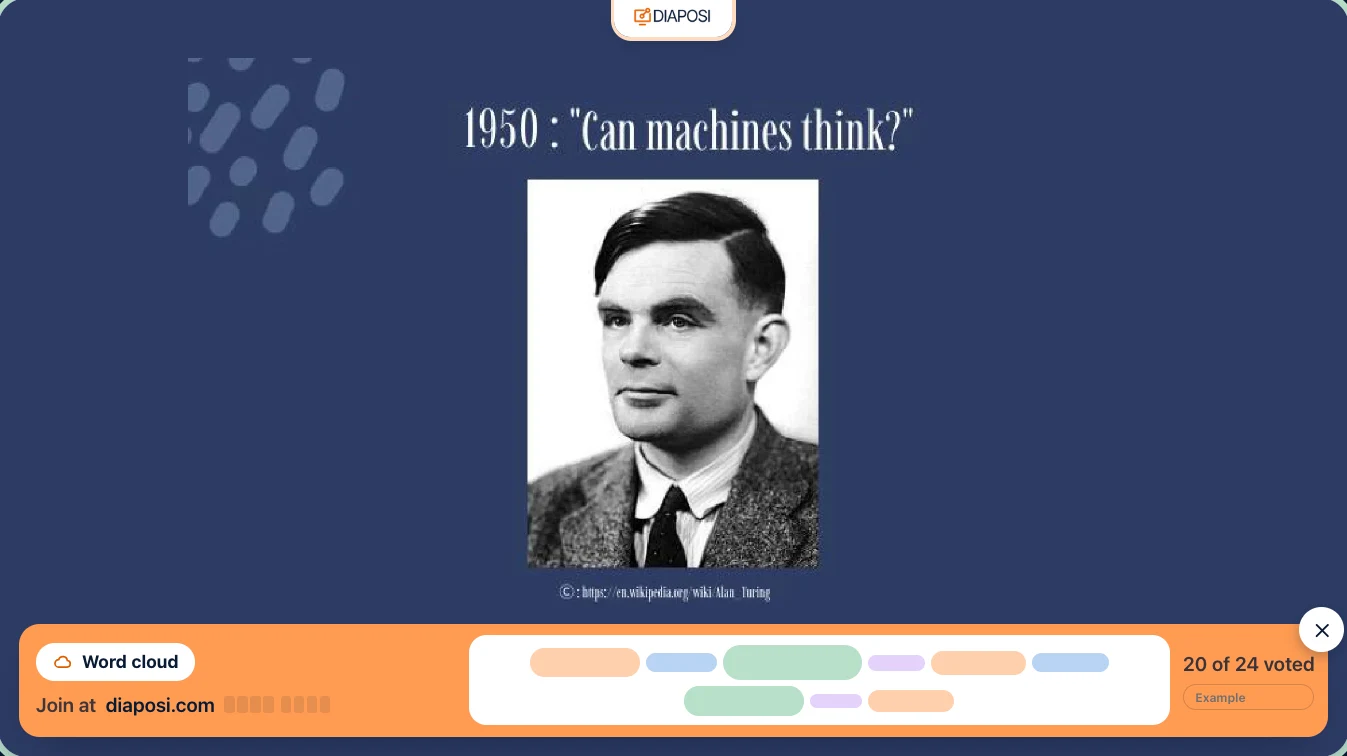
How do I make a live word cloud during a presentation?
Upload your PowerPoint, PDF or Word file to Diaposi and present it from the browser. On any slide, press Poll, choose Word cloud, write the question and launch. Participants scan the QR code or type the code on their phone and send a word or a short answer. The cloud grows on your screen as the answers arrive, the most given in the biggest type.
How the cloud grows, and what you control
The same answer grows
Each answer holds up to 40 characters. When others send the same one, it grows, whatever the capitals or accents they typed, and it shows the way most of the room typed it. Sizes follow the votes, and three colours set apart what the room agreed on.
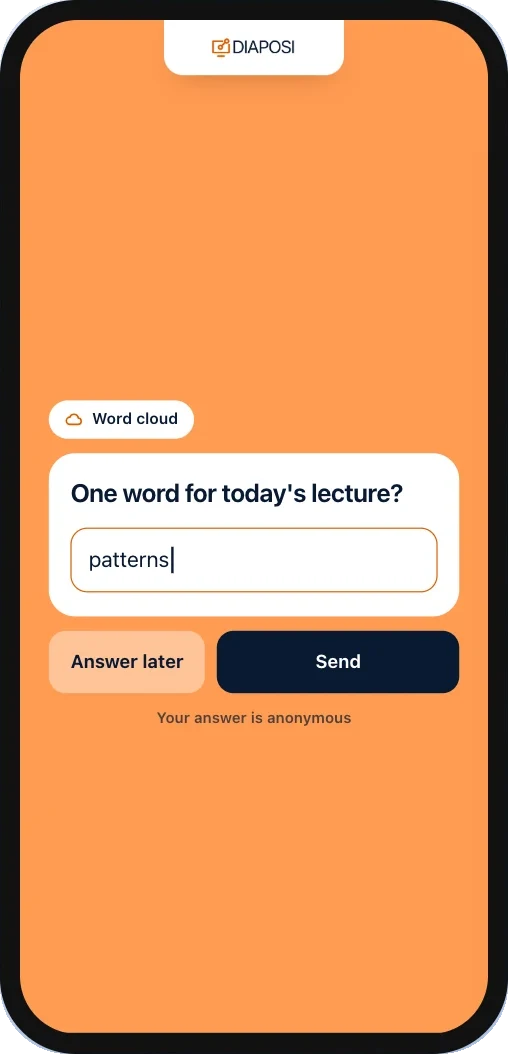
One word, or several each
By default each participant sends one answer and can change it until you close voting. Or let them send up to 10, or as many as they like: each new answer then adds to the cloud.
Kept clean, by you
Offensive words are kept off the screen unless you switch the filter off. The Review list beside the cloud takes an answer off the screen, with every reply that wrote it.
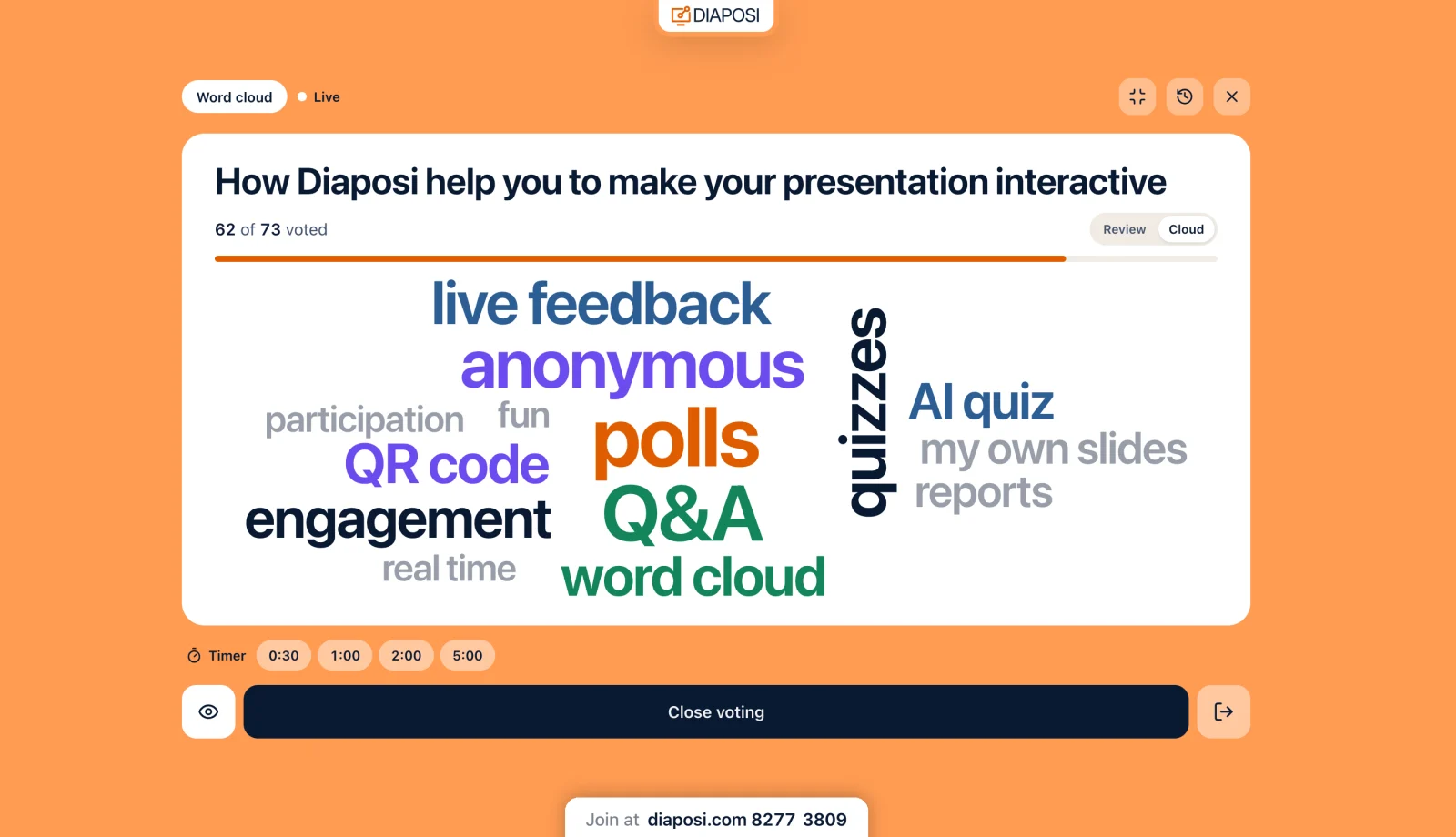
On the whole screen, when you choose
The cloud fills the stage by default, and one press brings the slide back. Show the answers as they arrive or when you decide, close voting and reopen it, and set a timer the room sees on their phones.
Four places to run a word cloud
The same word cloud, wherever you host.
On your slides
Upload the PowerPoint, PDF or Word you already have and launch the cloud from the slide you are on.
Live interactive presentationIn a poll session with no slides
Open a poll session on its own, invite the room with the code, and run the word cloud first or between other polls.
Diaposi PollOn an interactive whiteboard
Draw and explain on a whiteboard, then ask the room for a word right there.
Interactive whiteboardInside a prepared presentation
In Diaposi Studio, place a word cloud between two pages of your presentation, ready before the session starts.
Diaposi Studio
Each live tool, in detail
Every tool has a page of its own.
Every word cloud is kept, with the slide it was launched on, in the session report and your analytics.
Frequently asked questions
What is a live word cloud?
A live word cloud collects a short answer from everyone in the room and draws them together, the answers given most in the biggest type. In Diaposi you launch it from the slide you are on; participants type on their phones with a code, and the cloud grows on your screen as the answers arrive.
How many words can each participant send?
One answer each by default, up to 40 characters, which they can change until you close voting. You can allow up to 10 answers each, or as many as they like; each new answer then adds to the cloud.
Can I remove a word from the cloud?
Yes. The Review list beside the cloud takes an answer off the screen, with every reply that wrote it. Offensive words are kept off by default, and you can switch that filter off.
Are word cloud answers anonymous?
Yes. A word cloud shows no names, and participants are told their answer is anonymous.
Can participants answer a word cloud by link, on their own time?
No. A word cloud runs live, with the room. To collect answers on each person's own time, send a Diaposi Survey by link with a free answer question and a deadline.
Is Diaposi free?
Yes. Hosting is free to start, with no card, and participants never pay. The paid plans, Starter and Pro, are for learners.